If KakaoTalk verification is not working, the fix depends on which message you see. A code that never arrives, a verification text that fails to send and a sign-up that is “blocked” are different problems. Kakao warns that repeated attempts can restrict you, so find your message below before you tap the button again.
The short route: check the number format → make sure your phone line can send and receive texts → fix the network → wait, then contact Kakao with the details.
Sources checked: September 30, 2026. This guide is based on Kakao’s published English help pages. It is not a hands-on test of KakaoTalk verification.
In this guide
- Find your problem
- First: check the number itself
- If the code never arrives
- If KakaoTalk says the verification text failed to send
- If Kakao Account registration is blocked after an “abnormal attempt”
- If you are logging in to an existing account in Korea
- Thinking of switching KakaoTalk to a Korean SIM?
- Before you fly: a two-minute checklist
- When to contact Kakao
- Related Korea Sorted guides
Find your problem
| What you see | Most likely check | When to stop retrying |
|---|---|---|
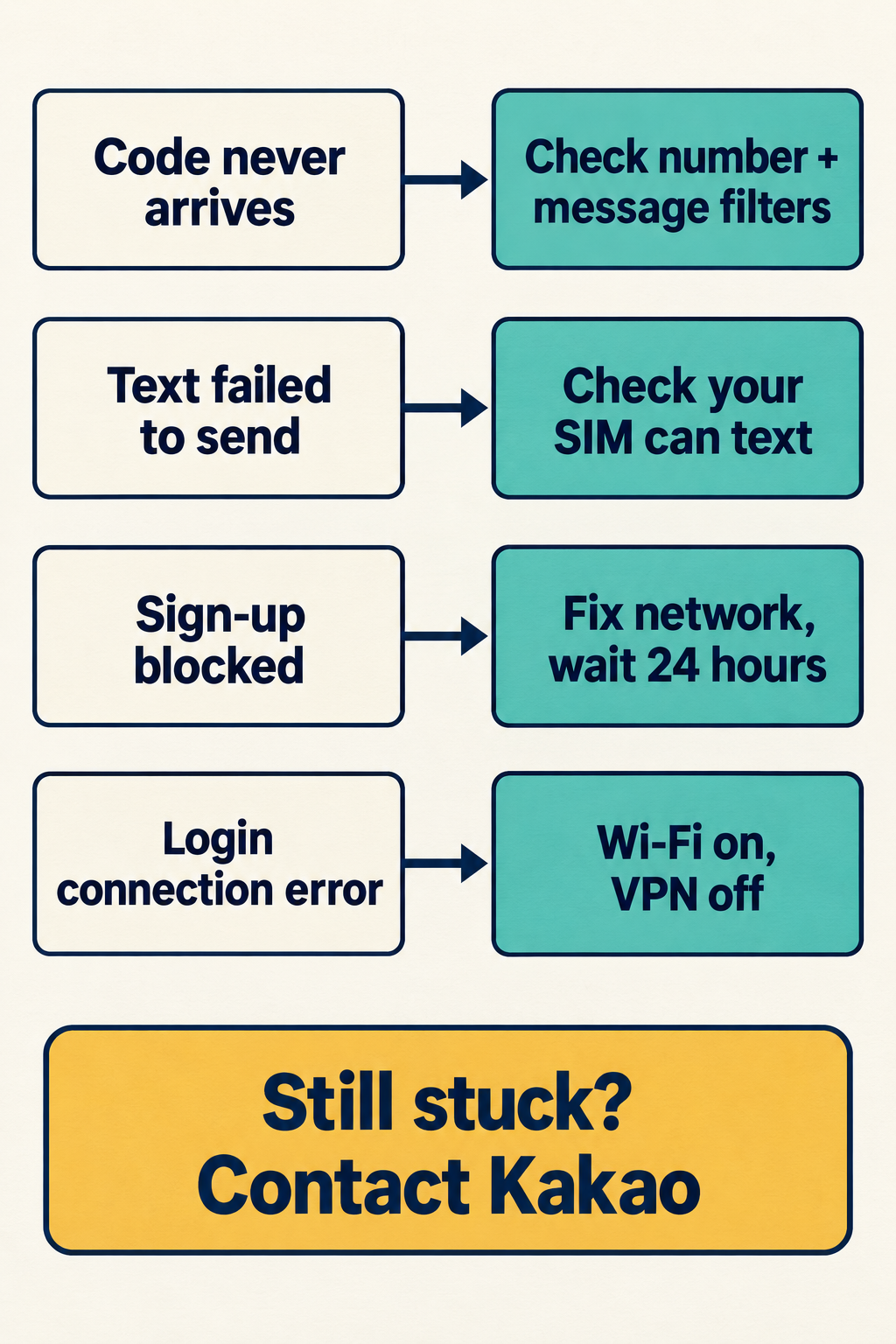
| The verification code never arrives | Number entered without the country code, message filters, carrier delay | Kakao says to contact it if the code has not arrived within 24 hours. |
| “Failed to send the verification text” | Whether your phone line is allowed to send messages, including from abroad | After a couple of failures, check with your carrier before trying again. |
| Kakao Account registration blocked after an “abnormal attempt” | Slow network, blocked cookies, ad-blocking or security programs | Kakao asks you to try again 24 hours after the message. |
| Login asks you to “check the connection information” | Your IP address changing during login: mobile data, VPN, iCloud Private Relay | Switch to Wi-Fi with VPN and Private Relay off, then try once more. |
| Login asks for your previous phone number | The number previously linked with KakaoTalk | Check it on your old phone; with dual SIM, try your other number. |
These are our suggested next steps based on Kakao’s help pages. They are not a diagnosis of your specific error message.
First: check the number itself
Start with the number field. Kakao says you should select the correct code for your country, then enter your phone number without the country code, and then continue through the SMS verification process. KakaoTalk is available in 230 officially registered international country codes, so pick yours from the list instead of typing “+1” or “+44” into the number box.
Two more rules from Kakao’s help pages:
- It must be your own mobile number. Kakao says, “You must enter your own mobile phone number.”
- Virtual and internet numbers are not accepted. Kakao says, “In order to prevent spams, we do not allow virtual numbers, internet phone numbers, etc.”
If the number you entered is an app-based or internet number, change to a regular mobile line before you retry. Retrying the same number is unlikely to change the result.
If the code never arrives
Kakao’s help page on missing SMS codes gives two reasons:
- The number is wrong. Recheck the digits and the country selection.
- Your carrier is slow. Kakao says, “Verification code delivery may be delayed in certain countries or regions, depending on your wireless carrier.”
Kakao’s help page for Kakao Account 2-step verification adds two checks that are worth trying here too. It warns that if the 1644 area code or the word “Kakao” is blocked on your phone, incoming texts may be blocked, so check your spam or blocked-message settings before requesting another code. It also says that if a text has not come for a while, select “Re-send Code.” Wait a few minutes before you tap it, rather than tapping it repeatedly. Kakao does not publish how many retries are allowed.
If nothing arrives within 24 hours, Kakao asks you to contact it through its website.
If KakaoTalk says the verification text failed to send
For this error, Kakao points to your phone line rather than the code. Its help page says to check with your mobile service provider to see if you are allowed to send messages, or if you can send messages overseas.
That matters for travelers. Kakao also says it “provides the best verification method for each users”, so the steps on your screen may not match a friend’s screenshots.
Using a travel eSIM? Some travel eSIMs are data-only. The eSIM seller Airalo, for example, says of data-only eSIMs: “If your eSIM supports data-only, you can still use another line for voice and SMS.” To do that, you need to enable the primary line and set it up as your Default Voice line. Airalo also warns this may incur roaming charges, so ask your home provider about costs first.
In practice, keep your home SIM line switched on while you verify, and check that your plan allows texting while roaming. Other eSIM sellers may work differently, so check your plan’s details.
Update, October 9, 2026: if you have not chosen an eSIM yet, see Korea eSIM for Foreigners for what SK Telecom, KT, LG U+ and four travel eSIM sellers say about Korean numbers and text-message verification.
Do not keep pressing the button. Kakao says you may be restricted from using the service if repeated sign-up or verification attempts occur.
If Kakao Account registration is blocked after an “abnormal attempt”
Kakao explains this message in its help for Kakao Account sign-up (the account you log in to KakaoTalk with). Kakao says registration may be restricted if abnormal service usage, such as the registration of multiple accounts from the same environment, is detected. Its help page says the following cases may be considered abnormal attempts:
- If the network speed is very slow
- If cookies are blocked on the browser
- If certain ad-blocking/security programs are installed
Fix those, then follow Kakao’s two remaining steps. If the problem persists, please try to sign up using a different network environment and device. Kakao also says to try again after 24 hours have passed since you received this message.
If it still fails, Kakao asks you to write down the screen where the issue occurred, along with the email address and phone number you used to attempt to register, and contact Kakao customer support.
If you are logging in to an existing account in Korea
Travelers who already use KakaoTalk can hit different checks when they log in on a new phone, a computer or a new network.
“Check the connection information.” Kakao says that if the Internet Protocol (IP) network information changes during the login process, the login may fail. Its fix is to log in by connecting to Wi-Fi, turn off the VPN settings, and on an iOS device turn off the iCloud+ Private Relay. Kakao describes Wi-Fi as more likely to have a stable connection.
Login restriction by country. Kakao says country-specific login restrictions are set automatically. When you log in from a country that is not registered as a login permitted country, you can log in after completing KakaoTalk verification or email verification. Make sure you can still open the email on your Kakao Account before you fly. Kakao lets you disable the setting under More > Settings > Kakao Account > Login Restriction by Country > Disable, but it is a security feature, so we suggest keeping it on and checking that email verification works instead. If you cannot use either verification method, Kakao says to contact its customer support.
“Enter your previous phone number.” To log in to a new KakaoTalk, you must enter the previous phone number linked with KakaoTalk. You can check it on your current phone under More > Settings > Manage > Phone Number. If you use two numbers or dual SIM cards, Kakao notes that you may have completed the verification with a phone number different from the one you entered.
2-step verification codes. If a 2-step verification message is not reaching you through KakaoTalk, Kakao says to verify that the account information logged into KakaoTalk matches the account information you are trying to log in with. Backup-email codes can end up in spam, so Kakao suggests searching your entire inbox for “Kakao” or “카카오”.
Thinking of switching KakaoTalk to a Korean SIM?
Treat it as a phone-number change, not a quick fix. Kakao says you may only use one Kakao Account per mobile number, and its number-change steps include deleting and reinstalling KakaoTalk and verifying the new number. If you want to keep your messages, back up your chat data before you verify the new number: More > Settings > Chats > Chat Backup.
Kakao also says that if you attempt to connect your Kakao Account to a different phone number than originally registered, you will automatically be unregistered from the account. For a short trip, keeping your home number on KakaoTalk is usually simpler.
Before you fly: a two-minute checklist
- Know your Kakao Account email and password, and check that you can open that email abroad.
- Write down the phone number your KakaoTalk is verified with (More > Settings > Manage > Phone Number).
- If you will use a data-only eSIM, confirm that your home line can still receive texts while roaming.
- Back up your chats if you might change phones or numbers.
- Turn off your VPN before logging in on a new device.
This checklist is our advice, drawn from the help pages above.
When to contact Kakao
Stop retrying and contact Kakao when a code has not arrived in 24 hours, when registration stays blocked after 24 hours, or when you cannot use the extra verification methods for a country login restriction. Kakao’s English question form has a category called “Verification Code Related”.
Include the exact error wording, your country and carrier, the phone number and email you used, and when the problem started. That list is our suggestion; the form itself decides which fields are required. We have not submitted an inquiry and cannot tell you how long a reply takes.
Related Korea Sorted guides
Setting up other Korean apps for your trip? See NAVER passport verification not working for NAVER’s identity check, and KakaoMap in English on desktop for planning routes on a computer.