Short answer: tap the star on a place, pick a list (or create one), then tap Save. You need a NAVER account to save: without signing in, NAVER’s save buttons sent us to the sign-in page. But the person you share a Link-only list with did not need an account to view it. On October 4, 2026, we made a test list in the NAVER Map iPhone app with the app set to English, saved two places in Busan, shared the list, opened the link in a browser that was not signed in, and then deleted the list. This guide covers what we saw at each step, including two things to know before you share: the link shows your NAVER nickname, and deleting a list also deletes the places in it.
Last checked: October 4, 2026. We tested the iPhone app (version 6.10.1, as shown in the app) with its language set to English, and NAVER Map on a computer browser. We did not test the Android app.
Quick answers
| Question | What we found |
|---|---|
| Do I need a NAVER account to save places? | Yes. Without signing in, the save button on the computer site sent us to the NAVER sign-in page |
| What is the Saved tab called in English? | Bookmark. It is the last tab at the bottom of the app |
| Can my travel partner see my list without an account? | Yes for our Link-only list: a browser that was not signed in showed the list, both places, our place nickname and our note. We did not open a Public list |
| Does the shared list show who made it? | Yes. The shared page showed the list owner’s NAVER nickname and profile picture |
| Why don’t my saved places show on the map? | When we closed the list, its stars were not on the map. Open the list, or tap Nearby saved at the top of the map |
| What happens if I delete a list? | The app warns that the saved places in it are deleted too, and the shared link stops working |
How we tested
We used an iPhone with the NAVER Map app, version 6.10.1, signed in to a NAVER account. We switched only the app to English (the phone stayed in Korean). Then we:
- Searched for Haeundae Beach in Busan and saved it into a new list called “KS test,” set to Link-only access.
- Saved Busan Haeundae Traditional Market into the same list, with a note and a map nickname.
- Checked whether the list appeared on the NAVER Map computer site.
- Opened the share link in a browser that was not signed in to NAVER, at phone size and computer size.
- Deleted the list and opened the same link again.
1. Set NAVER Map to English (iPhone)
On our iPhone, the language screen said NAVER Map uses the first supported language in the phone’s language and region settings, and that you can pick a different language for NAVER Map alone. To change only NAVER Map, go to the iPhone Settings app, then Apps → NAVER Map → Language, and pick English. Our phone was in Korean, so the labels we saw were 설정 > 앱 > 네이버지도 > 언어; the English names above are our translation. In our test the language list offered Korean, English and Simplified Chinese as recommended languages, with Japanese and Traditional Chinese under other languages.
There is also a Language line inside NAVER Map’s own settings. In our test tapping it did not open anything; its info note pointed to the phone’s language and region settings instead.
2. How to save a place
- Search for the place and open its card.
- Tap the star on the card. A panel opens instead of saving right away.
- Pick a list, or tap Create list to make a new one.
- Tap Save. The star on the card turns green.
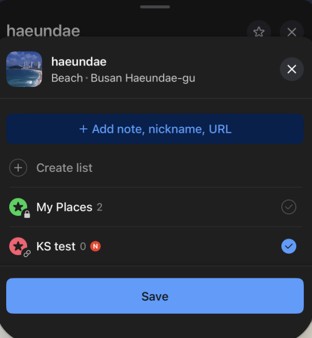
The Save button stays grey until you pick a list. In our test the panel did not remember the list we had used last: when we saved a second place, no list was ticked, so check the tick before you tap Save. Our account also had a list called My Places, marked Private.
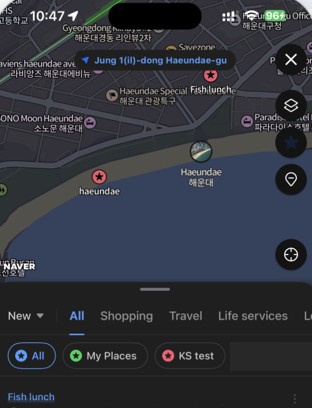
Add a note or a map nickname. In the same panel, tap Add note, nickname, URL. You get three boxes: a note (up to 50 characters), a nickname that appears on the map (up to 25 characters) and a URL. We typed a short test note (“Opens 09:00”) and the nickname “Fish lunch.” When we opened the list, the map showed “Fish lunch” next to the star instead of the market’s name. A nickname is a quick way to remember why you saved a place.
NAVER announced in 2022 that you can save up to 5,000 places.
3. Make a list for your trip
When you tap Create list, you get a name box (up to 20 characters), an icon, an optional description and three sharing options:
- Private (the default): “Only you can see your list.”
- Link-only access: “Anyone with the link can see your lists.”
- Public: your list “will be accessible via link, appear in My Sharing List, and may also appear in NAVER search results and recommended content.”
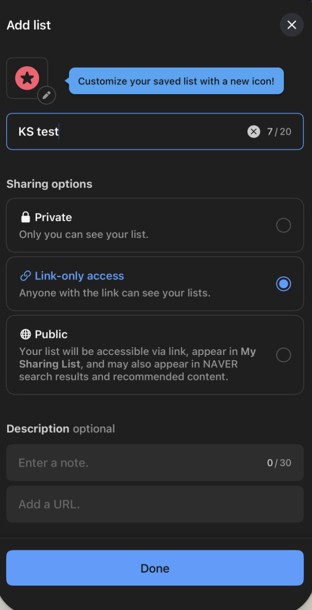
For a trip you plan with someone else, Link-only access is the middle option: anyone who has the link can open the list (and see your NAVER nickname), but unlike Public, the app does not say it will appear in My Sharing List or NAVER search. After we tapped Done, the new list was already ticked in the save panel.
4. Share a list with your travel partner
- Tap the Bookmark tab at the bottom of the app and open the list.
- Tap Share. On our iPhone this opened the phone’s share sheet with a short naver.me link.
- Send the link however you like.
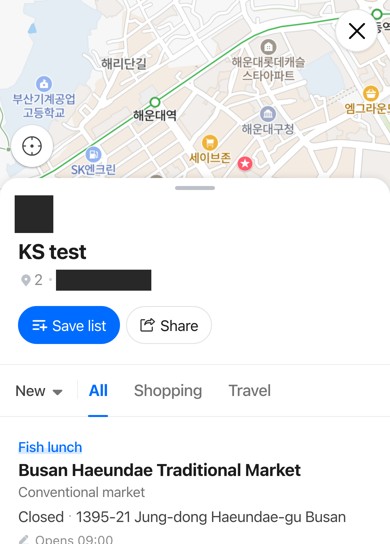
What the other person sees. We opened the link in a browser that was not signed in to NAVER. At phone size, the page showed the list name, both places, our place nickname “Fish lunch” and our note, with English buttons such as Save list and Share. At computer size, the same list opened on the NAVER Map site, which showed its menus in Korean even though the browser was set to English.
Two things to know before you share:
- Your NAVER nickname goes with the list. The shared page showed the list owner’s NAVER nickname and profile picture. If you would rather not show yours, check it in your NAVER profile before you share.
- Viewing needs no account, saving does. When the browser that was not signed in tapped Save list, it went to the NAVER sign-in page. So your partner can open a Link-only list without an account, but has to sign in to save it. We did not go past the sign-in page.
In its 2022 announcement, NAVER said that a friend you share a list with can see the places you add later in real time. We did not test later changes.
Same account on the computer. When we checked the NAVER Map computer site a few minutes after creating the list, while signed in to the same account, the list was there with the same note and nickname, and labeled 일부공개 (partly public), which matches Link-only access.
5. Saved places not showing on the map?
Google suggests the search “naver map not showing bookmarks,” so we checked it. Here is what we saw:
- With the list closed, its stars were not on the map. After we closed the list and went back to the main map, the Haeundae area showed no stars for our two saved places.
- Open the list, and the stars appear. When we opened the list from the Bookmark tab, both places showed as red stars, with our nickname on the map.
- Or tap Nearby saved. The Nearby saved button at the top of the map showed our saved places in the area as stars, with filters for each list.
- Check whether the list is hidden. A list’s Edit menu has a Hide on your map option. We did not test it, but if one list never shows up, look there first.
If saved places seem to have disappeared from a list, it is not always your phone. NAVER posted a notice that on January 30, 2026, for about 10 hours, saved places did not appear in lists and the screen turned white when sharing, and that the problem was fixed.
6. Delete a list (and what you lose)
In the list, tap Edit. The menu has four options: Edit list info, Hide on your map, Edit place list and Delete. When we tapped Delete, the app asked: “Delete the list? Deleting a list will also remove the saved places in it.”
So if you want to keep a place, save it into another list before you delete. After we deleted our test list, the share link showed “Unable to see the list as it has been deleted.”
Saving routes
The Bookmark tab has a separate Routes tab next to Places. In our October 3, 2026 test for our offline guide, with a connection and the app in Korean, saving a public transit route from the route screen’s menu put it in that Routes tab, not in a list. See NAVER Map offline for what happened when we cut the internet.
What we did not test
- The Android app.
- What the Hide on your map option changes.
- Whether a list your partner saves with Save list updates when you change yours.
- Saving routes with the app in English.
- Saving places on the computer site while signed in.
FAQ
Can I save places on NAVER Map without an account? Not in our test. Without signing in, the save button on the computer site sent us to the NAVER sign-in page. If you need an account, see our guide to NAVER passport verification.
How many places can I save? NAVER announced a limit of 5,000 saved places in 2022.
Can I use my saved list on a computer? Yes. Our list showed up on the NAVER Map computer site under the same account. In our test the computer site showed its menus in Korean; see NAVER Map on desktop in English for what works there.
Is NAVER Map available in English? The iPhone app we tested (version 6.10.1) can be set to English. See our NAVER Map guide for foreigners to get started.