Short answer: not in our test. On October 3, 2026, we downloaded a region’s map inside the NAVER Map iPhone app, then turned on airplane mode and turned off Wi-Fi. The app opened to a warning saying NAVER Map needs an internet connection and would not show the map. The phone owner reported that tapping OK only brought the same warning back. NAVER Map does have a map download option, but it sits in the car navigation settings, and NAVER’s help page describes it as a way to use less data. Plan for a data connection, and prepare a few things before you lose signal.
Last checked: October 3, 2026. We tested the iPhone app (version 6.10.1, as shown in the app). We did not test the Android app.
Quick answers
| Question | What we found |
|---|---|
| Can NAVER Map open with no internet? | Not in our test. Starting it with no internet, it showed a “needs an internet connection” warning and no map |
| Is there a map download option? | Yes: 권역별 지도 다운로드 (regional map download), inside the car navigation settings |
| Does downloading the map make it work offline? | It did not get us past the warning when we started the app offline. We could not tell whether it helped the map after the connection dropped |
| What if the app is already open when you lose signal? | The Haeundae Beach screen we had open stayed. When we moved the map, some areas showed only street lines |
| What should I do instead? | Get mobile data for your trip, and screenshot your routes before you go |
How we tested
We used an iPhone with the NAVER Map app, version 6.10.1. While connected to Wi-Fi, we downloaded the 경남권 (Gyeongnam) region, which includes Busan. We also searched for Haeundae Beach and saved it, and saved a public transit route from Busan Station to Haeundae Beach. Then we cut the internet in two ways:
- We turned on airplane mode, turned off Wi-Fi and then opened the app.
- With the app already open on Haeundae Beach, we turned on airplane mode and turned off Wi-Fi, then moved the map.
One catch for your own test: when we only turned on airplane mode, our phone stayed connected to Wi-Fi, so we also had to turn Wi-Fi off.
1. Where the map download is, and what it is for
Where to find it:
- In NAVER Map, tap your profile icon at the top right (MY).
- Tap the gear icon (설정, Settings).
- Tap 차량 내비게이션 (car navigation).
- Scroll to the bottom and tap 권역별 지도 다운로드 (regional map download).
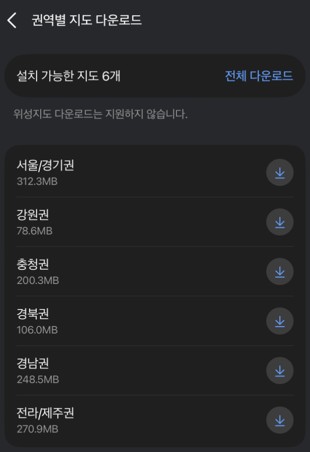
In our app the list showed six regions you could install, from 강원권 (Gangwon) at 78.6MB to 서울/경기권 (Seoul and Gyeonggi) at 312.3MB. Busan is in 경남권, at 248.5MB. A line under the title says, in Korean, that satellite map download is not supported. On our Wi-Fi, the 경남권 download took about a minute.
What NAVER says it is for. NAVER’s Korean help page about this option is titled, in our translation, “How to reduce navigation data use.” It says NAVER’s navigation downloads only the parts of the map it needs as you drive, and that if you download the map in advance, you use only a small amount of data for real-time traffic. The page does not say the app works without internet. Its path names the menu 내비게이션 설정; in our app the menu was called 차량 내비게이션.
2. What happened when we went offline
Opening the app with no internet. We had already downloaded 경남권. The app did not show a map. It showed this message:
네이버지도를 이용하려면 인터넷 연결이 필요합니다. 데이터 또는 Wi-Fi 연결 상태 확인 후 앱을 실행해주세요.
In English: to use NAVER Map you need an internet connection; check your data or Wi-Fi connection and then open the app. The phone owner reported that tapping 확인 (OK) brought the same message back and that they could not get past it; we do not have a second photo of that step.

Losing signal with the app already open. This tests what happens when the connection drops while you are using the app. The Haeundae Beach screen we had open stayed on screen, with the shop names and the place card. When we moved the map, it was patchy: one area showed only thick street lines with almost no buildings or names, another showed streets with school and park names, and a third showed only a few lines and names. We cannot tell you which parts came from the download and which were left over from what we had just viewed, because we did not repeat the test without the download. Our tester’s impression was that the map was not really usable.
We did not get photos of the 저장 (Saved) tab while offline, so we cannot tell you whether a saved route opens without internet.
3. What to do instead
- Get mobile data for your trip. NAVER Map stopped at a connection warning when we started it offline, so a data plan that works in Korea (an eSIM, a SIM card or portable Wi-Fi) matters more than any download.
- Screenshot your routes before you leave Wi-Fi. Open each route in NAVER Map and take a screenshot of the steps, so you have a copy of the directions that does not depend on the app.
- Keep the app open on the area you need. In our test, the screen that was already open stayed after we lost signal. Do not count on moving the map, though.
- Save the Korean name and address of where you are going. You can show it to a taxi driver even if the app will not load.
- Download the region if you will drive. NAVER describes the download as a way to use less data during navigation. That is useful, but NAVER does not present it as an offline mode, and it did not get us past the warning.
If NAVER Map will not load even with a connection, see our guide to NAVER Map not working. If you are just getting started, see our NAVER Map guide for foreigners.
What about KakaoMap?
We did not test the KakaoMap app offline. On Kakao’s developer forum, a Kakao reply says KakaoMap service and the KakaoMap API can be used only online. That reply was written for developers, so treat it as a hint, not a test of the app.
What we did not test
- The Android app.
- Whether a saved place or a saved route opens offline.
- The same offline test without downloading the region first, which would show what the download changes.
- The KakaoMap app offline.
- Whether the map download helps once you have signal again.
FAQ
Can I download NAVER Map for offline use? You can download regional maps under the car navigation settings, but in our test the app still stopped at a connection warning when we started it without internet.
Why does the download exist, then? NAVER’s help page describes it as a way to use less data during navigation.
Can I use NAVER Map without a Korean SIM? In our test the app stopped at a connection warning when we started it without internet, so arrange a working internet connection for your trip. Our test used Wi-Fi.