If NAVER Map opens on the wrong neighborhood on a computer, it may not be broken. NAVER’s own settings panel says the desktop site, by default, predicts your location from your IP address, and in our test it did not ask the browser for its location at all. You can set the location yourself under 더보기 → 설정 → 접속 위치 설정. On October 2, 2026, we tested that setting and a few other common problems on map.naver.com. Below, each problem starts with what to do, then what we saw.
Last checked: October 2, 2026. We tested the desktop website, map.naver.com, in a Chrome-type browser. We did not test the phone apps; for those we report what NAVER’s help pages say.
Quick fixes
| What you see | Do this first | Section |
|---|---|---|
| The map opens on the wrong neighborhood, and the location button does not move it (computer) | Set your location by hand in 접속 위치 설정 | 1 |
| The side panel works but the map itself is blank | Turn off your ad blocker for NAVER Map, or try another network | 2 |
| The whole page is empty | Check that JavaScript is on, then reload | 2 |
| The phone app is slow or will not open | Switch between Wi-Fi and mobile data | 3 |
| You cannot sign in | You may not need to: on the website, search and directions worked signed out in our test | 4 |
| Your saved places are missing | Check that you are signed in, then check NAVER’s notices | 5 |
How we tested
For every test we opened map.naver.com in a fresh Chromium browser window that was never signed in to NAVER, with the browser language set to US English, the time zone set to Seoul and a 1440×900 window, from an internet connection in Seoul. All tests ran on October 2, 2026, between 9:30 and 9:50 p.m. Korea time. Some tests were experiments: we blocked something on purpose to see what the page looks like when it is blocked. We say so where we did.
1. Wrong location on a computer
What to do:
- Open map.naver.com and drag the map to where you are (or where you want the map to start).
- Click 더보기 (More) in the left menu, then 설정 (Settings).
- Click 접속 위치 설정 (access-location setting).
- Choose 직접 설정 (Set manually), move the map to the place you want, and click the blue 저장 (Save) button.
- To undo it later, come back to the same panel, choose 자동 (Automatic) and click 저장 again.
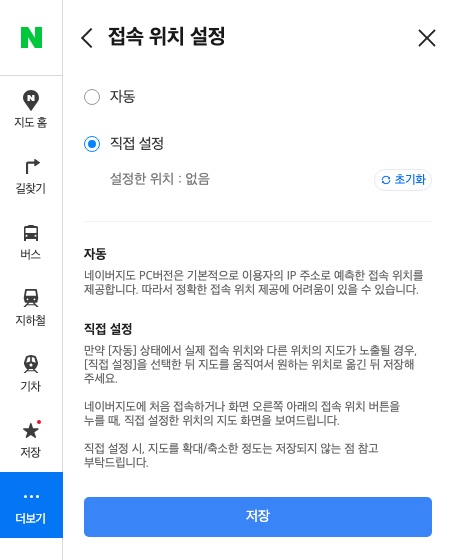
Why this happens. The panel explains it in Korean: “네이버지도 PC버전은 기본적으로 이용자의 IP 주소로 예측한 접속 위치를 제공합니다.” In English: by default, the PC version of NAVER Map shows an access location predicted from the user’s IP address, so it may be hard to give an accurate location. Next to the location button at the bottom right of the map, a note reads “실제 접속 위치와 다르다면?”, meaning “Different from where you really are?”
What we saw. When we first opened the site, it showed a Seoul neighborhood without asking for the browser’s location. We then pressed the 접속위치 (access location) button in three set-ups: with location permission not given, with permission given and a position at Gyeongbokgung Palace, and with permission given and a position in New York. We granted the permission and set those positions in our test browser; our internet connection stayed in Seoul. All three times the map stayed on the same neighborhood, and the page address did not change. With permission given, we also recorded whether the page asked the browser for its location at all; it did not, at any point.
Then we followed the steps above. After we clicked 저장, the panel showed “저장이 완료되었습니다” (“Saved”). A new tab in the same browser opened on a different neighborhood from before, and pressing 접속위치 kept it there. Oddly, the panel’s “설정한 위치” (set location) line still read 없음 (“none”); we did not find out why. When we switched back to 자동 and saved, a new tab opened on the original neighborhood again.
Three things to know:
- The panel says the zoom level is not saved; only the place is.
- When we opened the map from a link that already pointed at a place, the 자동 and 직접 설정 choices stayed greyed out for more than 20 seconds. From the normal home page, map.naver.com, they worked.
- We checked the setting only in new tabs of the same browser. We did not check whether it stays after you close the browser.
On a phone. We did not test the phone apps, and we did not find a NAVER help page about the phone location to quote.
2. The map is blank or will not load (computer)
What to do:
- Reload the page.
- If the side panel shows place details but the map area is a blank grid, turn off your ad blocker or privacy extension for map.naver.com, or try another network. The map pictures come from a separate address, map.pstatic.net.
- If the whole page is empty, check that JavaScript is turned on in your browser.
- Try another browser. NAVER’s help page for a slow map on PC links to checks for Chrome, Whale, Edge and Firefox.
- If nothing works, NAVER’s help page says to press the error-report button at the bottom of that page to file an inquiry.
What NAVER says. NAVER’s help page for a slow map on PC says the cause may be the browser or the network you are using. Its two fixes are to check your network and to run the browser-specific checks.
What we saw. These were experiments, not real outages.
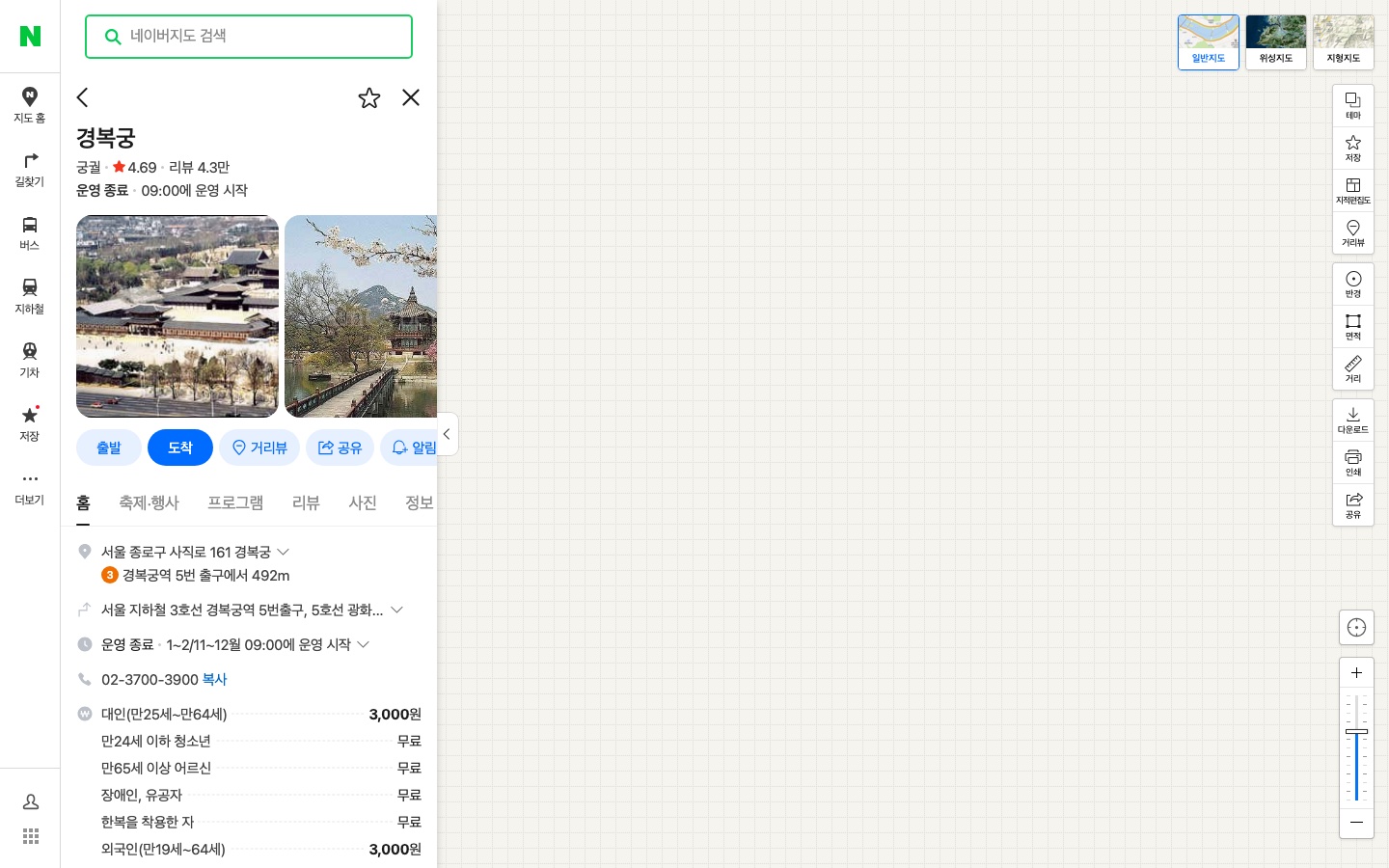
- Normally, the Gyeongbokgung page loaded all 139 map pictures.
- When we blocked map.pstatic.net on purpose, as an ad blocker or office firewall might, the map area turned into a blank grid. The search box and the place panel still appeared: the palace’s name, rating, opening hours, address and fees were all there.
- With JavaScript turned off, the same address answered normally but the page was completely empty.
- The old addresses we tried still worked. map.naver.com/v5/ and map.naver.com/index.nhn sent us to the current site, map.naver.com/p/, and the map loaded.
When we loaded the home page, 203 of its 309 requests went to map.pstatic.net. That is why, in our experiment, blocking that one address left the panel showing and the map blank.
3. The phone app is slow or will not open
We did not test the phone apps. This is what NAVER’s Korean help page for a slow map says (our translation):
- If the map or its markers (photos, pins, dots) load slowly, you can fix it yourself by checking your device.
- An unstable network can also stop the app from starting or a page from opening.
- Switch your connection, from mobile data to Wi-Fi or from Wi-Fi to mobile data, and try again.
Update, October 3, 2026: if the app will not open because you have no internet at all, downloading a regional map does not fix it. In a later iPhone test, NAVER Map stopped at a “needs an internet connection” warning even with the region downloaded. See NAVER Map Offline: Does It Work Without Internet? for what we tested and what to do instead.
Also check your phone’s version. The App Store listing says the app requires iOS 16.0 or later, and the Google Play listing says Android 8.0 or later.
If the app opens but shows Korean, our first guide has Android and iPhone steps for switching it to English.
4. You cannot sign in
First, check whether you need to. In our earlier test on September 26, 2026, search, directions and share all worked in a browser that was never signed in to NAVER. Only Save sent us to the sign-in page.
If you do need to sign in, three things on NAVER’s English help pages can block you:
- A CAPTCHA. NAVER says a CAPTCHA appears after the ID and password are entered incorrectly a certain number of times. Enter your ID, password and the CAPTCHA, in that order.
- Block login attempts from overseas. NAVER says that if this setting is on, login attempts from foreign countries are blocked. If you turned it on, remember it before you sign in from outside Korea.
- A restricted account. NAVER says it restricts login for accounts created abnormally in an unsafe environment, which it judges likely to have been made with stolen personal information.
If your problem is the passport check rather than the sign-in, see our guide to NAVER Passport Verification not working.
5. Saved places are missing
In our September 26 test on the desktop website, clicking Save while signed out sent us to the sign-in page. So first check that you are signed in, with the same account you saved them with.
Sometimes the problem is on NAVER’s side. A NAVER Map notice dated January 30, 2026 (in Korean) says an error was fixed in which saved places did not appear in the list, or sharing showed a white screen. If your list is empty and you are signed in, check NAVER Map’s notices before you change anything.
What we did not test
- The phone apps: location, speed, cache, reinstalling and updates. For these we report only NAVER’s help pages.
- Browsers other than Chromium, such as Safari, Firefox, Edge and Whale.
- A real ad blocker or office firewall. We blocked the map address ourselves to imitate one.
- An internet connection outside Korea, or a VPN.
- Saved places while signed in, the overseas login block, or the CAPTCHA.
- Whether the manual location stays after you close the browser.