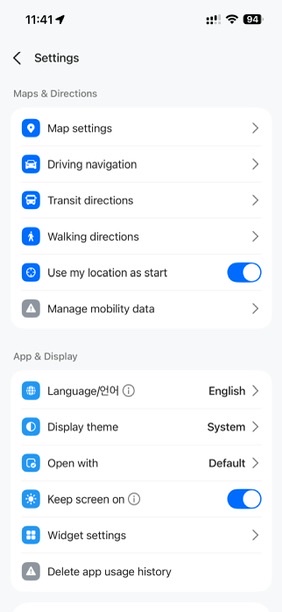
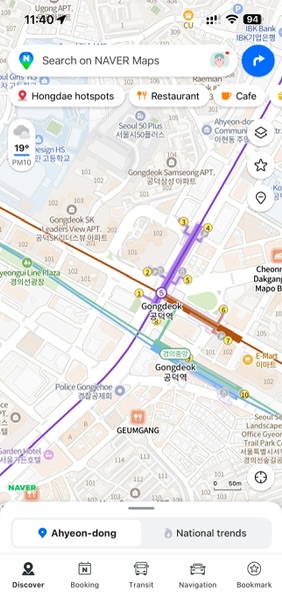
The NAVER Map desktop site has no English setting that we could find: on September 26, 2026, its Settings panel had no language option and its menus stayed Korean, unlike the phone app. But with our browser set to English, parts of map.naver.com appeared in English, English searches found major places, and transit routes listed stops in English. Plan on the computer, then hand each place to your phone.
Last checked: September 26, 2026
Key takeaways
- The desktop Settings panel (더보기 → 설정) has seven options, and none is a language.
- With an English browser language, area names in search results and transit stop names showed in English; menus and buttons stayed Korean.
- English names such as Gyeongbokgung Palace found the right place first; “Seoul Station” alone did not.
- Search and directions worked without a NAVER account; saving needed a sign-in, and Share gave a naver.me link for your phone, where the app has an English setting.
- In our tests, transit departure and arrival times, including the departure-time menu, followed the browser’s time zone, not Korea’s.
In this guide
- At a glance
- Is there an English setting on the NAVER Map desktop site?
- What shows up in English anyway
- Searching for places in English
- Getting transit directions on a computer
- Saving places and sending them to your phone
- Korean buttons you’ll see (cheat sheet)
- When to switch to the phone app
- What we checked and what we didn’t
- FAQ
- Sources
At a glance
| Task | Works in English on the desktop site? | What we saw on September 26, 2026 |
|---|---|---|
| Change the language | No option found | Settings had no language option, and the menus stayed Korean |
| Search a place in English | Partly | English names found major places, but the results came back in Korean |
| Transit directions | Partly | With an English browser language, stop names and route labels were English; the buttons stayed Korean |
| Read departure times | In your browser’s time zone | A New York-time browser showed 4:20 a.m. while it was 5:20 p.m. in Seoul |
| Save a place | Needs a NAVER sign-in | Save sent us to NAVER’s sign-in page |
| Send a place to your phone | Yes, as a link | Share gave a naver.me short link with a Copy button (we did not open it on a phone) |
| Use the mobile website | No | m.map.naver.com was Korean, and we found no language option |
Is there an English setting on the NAVER Map desktop site?
Not in its Settings panel. We looked on September 26, 2026, in a signed-out, Chrome-based browser set to English. The More menu (더보기) showed version v3.36.0 and led to Settings (설정).
Settings had seven options: connection location (접속 위치 설정), Street View (거리뷰 설정), car type and fuel (차종/연료 설정), NAVER Booking (네이버 예약 설정), saved places (저장 설정), view history (사용 기록 보기), and delete all history (사용 기록 전체 삭제). There was no language option, and a second, signed-in browser showed the same list.
Update, October 2, 2026: the first option, connection location (접속 위치 설정), decides where the map opens. Its panel says the PC version predicts your location from your IP address, and you can set the location by hand there. See NAVER Map Not Working? Fixes for a Wrong Location, a Blank Map and Sign-In for the steps we tested.
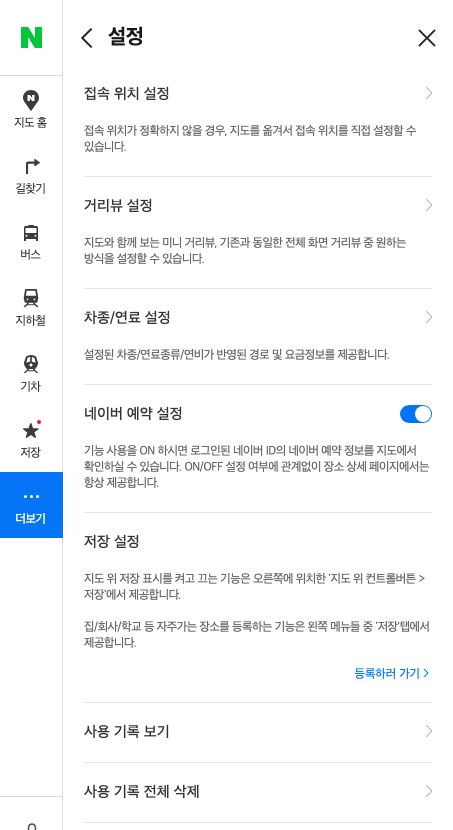
The menus stayed Korean too: 지도 홈 (map home), 길찾기 (directions), 버스 (bus), 지하철 (subway), 기차 (train), 저장 (save), and 더보기 (more); the page declared its language as Korean, and no menu offered English. The mobile website, m.map.naver.com, was Korean too, with a Go to App button, and we found no language option there either.
What NAVER says about languages
NAVER’s own language instructions cover the phone app: the help page is labeled MOBILE, lists Korean, English, Simplified Chinese, and Japanese, and needs app version 5.1.3 or later. Its press releases say the multilingual service follows the phone’s system language or the app’s own setting, call the product a four-language mapping app, and date multilingual maps to 2018.
We found no official page saying which languages the desktop site supports, and no notice that an English computer map was shut down; the only PC-map shutdown notice we found concerns Internet Explorer 11, in August 2023. So we are not saying NAVER removed anything, only that we could not find the setting on September 26, 2026.
What shows up in English anyway
Even without a setting, some of the site showed up in English with our browser set to English: promotion cards on the home page (“Book unique experiences from 100 KRW”) and area names in search results (“Seoul Jung-gu Myeong-dong”). In one Directions search, where we pressed the down-arrow key and Enter instead of clicking a suggestion, the place list came back in English (Gyeongbokgung Palace, Royal palace, 161 Sajik-ro Jongno-gu Seoul).
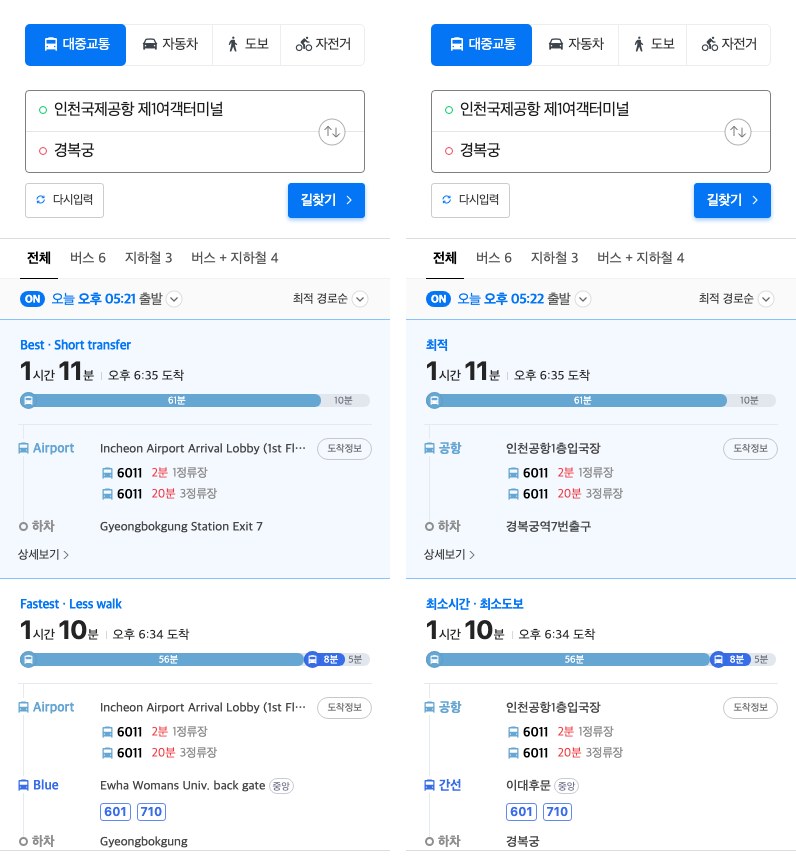
For a transit route from Incheon Airport Terminal 1 to Gyeongbokgung, the route labels and stop names were English: Best · Short transfer, Incheon Airport Arrival Lobby (1st Floor), Gyeongbokgung Station Exit 7. The tabs, buttons, and time words stayed Korean: 대중교통 (public transit), 자동차 (car), 도보 (walking), 자전거 (bicycle), and 오후 6:35 도착 (arrives 6:35 p.m.).
The proof that the browser did it: the same route, in the same time zone, with the browser set to Korean, gave Korean labels such as 최적 (best) and 경복궁역7번출구 (Gyeongbokgung Station Exit 7). So the English route labels came from the browser’s language, not from a NAVER setting; our test ran from Seoul, so we cannot promise the same from abroad.
The subway map (지하철) stayed Korean in the view we checked: station names, region tabs, and line badges (numbers, or Korean names such as 공항), with no language option that we could find.
Searching for places in English
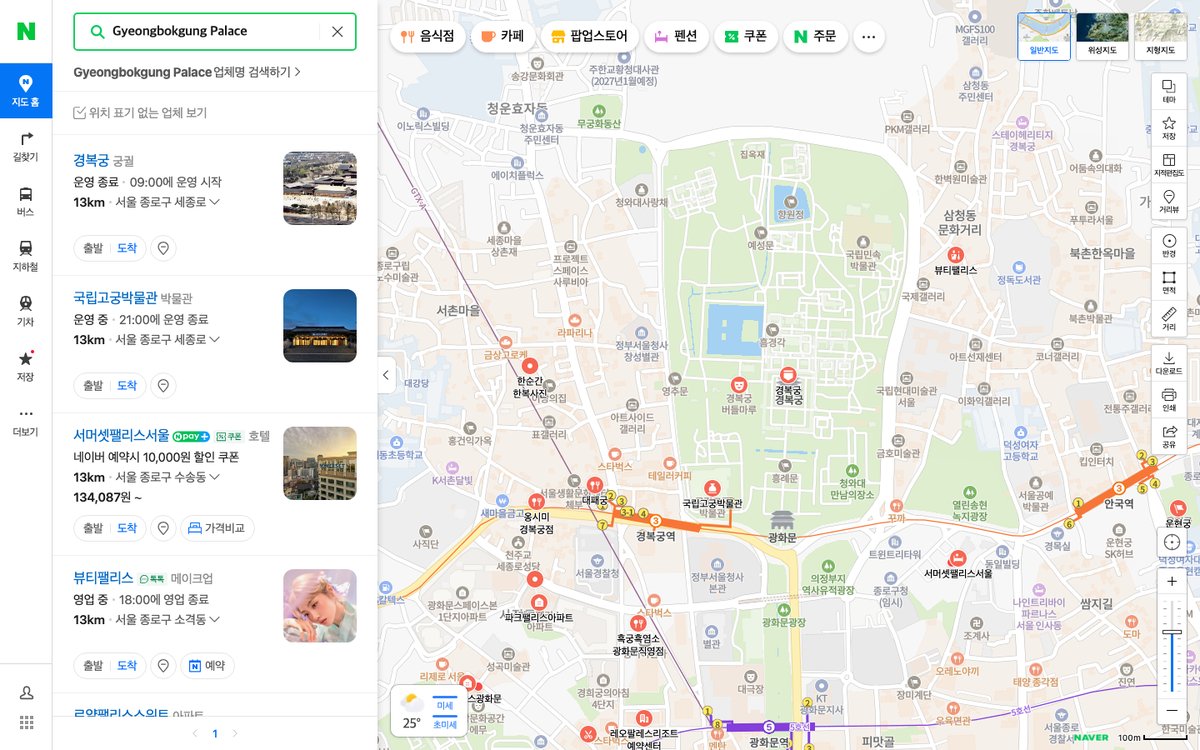
Searching for English names found the right place first for the big sights. The results came back in Korean, though (경복궁, 궁궐, 서울 종로구 세종로 for Gyeongbokgung Palace), even when the query was English.
| Search term | What came first |
|---|---|
| Gyeongbokgung Palace (also “gyeongbokgung”) | 경복궁 (궁궐), the palace |
| N Seoul Tower | N서울타워 |
| Lotte World Tower | 롯데월드타워 |
| Incheon Airport Terminal 1 | 인천국제공항 제1여객터미널, Incheon International Airport Terminal 1 |
| Bukchon Hanok Village | 북촌 한옥마을 |
| Gwangjang Market | 광장시장 |
| Hongdae | 홍익대학교 서울캠퍼스, Hongik University’s Seoul campus |
| Seoul Station | Businesses with “station” in their names, not the train station |
We opened the search results for each term, and for five of them (Gyeongbokgung Palace, Seoul Station, Seoul Station KTX, N Seoul Tower, Myeongdong) we also typed the term into the search box; that gave the same results.
NAVER’s help center has a PC-tagged article on English business-name search: if a search word sounds like the business name, or is Korean or English, NAVER can add it as an extra search term so the place shows up — a search aid, not a language menu.
Tips for stations and area names
- Stations. “Seoul Station” alone showed businesses with “station” in their names. “Seoul Station KTX” found 서울역 (고속철도), “Seoul Station Line 1” found 서울역 1호선, and pasting the Korean name 서울역 worked. “Seoul Stn” and “Seoul-yeok” found nothing, and “Seoul Station subway” brought up other stations. So add KTX or the line number, or paste the Korean name.
- Same-named areas. “Myeongdong” returned an area list with several neighborhoods called Myeong-dong, in Seoul’s Jung-gu but also in Jecheon-si, Yangsan-si, and Changwon-si’s Jinhae-gu. Pick the Seoul one, or check the district in the address before you save it.
- Read the address. Results are in Korean, so check the district in the address line (종로구 is Jongno-gu) rather than the name alone.
Getting transit directions on a computer
These steps worked in a browser that had never signed in to NAVER.
- Click 길찾기 (directions) in the left menu, or open map.naver.com/p/directions.
- Click the 대중교통 (public transit) tab above the boxes; the others are 자동차 (car), 도보 (walking), and 자전거 (bicycle).
- Type an English name into the top box (start) and pick a suggestion; for Incheon Airport Terminal 1 the site suggested 인천국제공항 제1여객터미널.
- Do the same in the bottom box (destination); both boxes then hold the Korean names.
- Click the blue 길찾기 (find route) button.
The results panel lists several routes with the total time, the arrival time (오후 6:35 도착), and each leg’s bus number and stops. In our check on September 26, the Best route from the airport to Gyeongbokgung took 1 hour 11 minutes (airport bus 6011, then a 10-minute walk), one departure on one day, not a typical time.
What NAVER’s help pages add
NAVER’s PC help pages add things we did not test:
- Set the start and end by right-clicking the map, or use saved home, work, and school addresses.
- Waypoints, up to five, exist only for car, walking, and bicycle routes; transit has none.
- Live bus information shows from a bus-number search, a stop icon, or a transit result.
- Driving routes take major roads and live traffic into account; NAVER says the results may not exactly reflect road and legal conditions and are for reference only.
Time zones and the departure-time menu
Check the time zone. In our tests, the transit times on the desktop site followed the browser’s time zone, not Korea’s. At 5:20 p.m. in Seoul, our browser set to New York time showed the departure as 오늘 오전 04:20 출발 (today, 4:20 a.m.), and the bus and train times we compared were shifted by the same 13 hours; a browser set to Seoul time showed 오늘 오후 05:21 출발 (5:21 p.m.) for the same trip.
The time sits next to 출발 at the top of the results. Clicking it opens day, hour, and minute pickers with 이전 (previous) and 다음 (next) arrows, plus 지금 출발 (depart now). The pickers followed the browser’s time zone too: on New York time, a departure set to 10:25 a.m. (11:25 p.m. in Seoul) returned the same trips as a Seoul-time search set to 11:26 p.m. Changing only the hour keeps the current minutes, and when we moved the hour past midnight the date changed too (to 09월 27일), so check the date and minutes after you change the hour.
In our test, the times matched Korean time when the browser was set to Seoul time, and not when it was set to New York time. If you plan from outside Korea, set your computer’s time zone to Seoul while you plan, or convert each time yourself, date included.
Saving places and sending them to your phone
Searching and directions worked without an account, but saving did not. Clicking 저장 (save) on a place while signed out sent us to NAVER’s sign-in page (nid.naver.com), which was in English. To save places you need a NAVER account; our first guide, NAVER Map for Foreigners, covers accounts and Passport Verification.
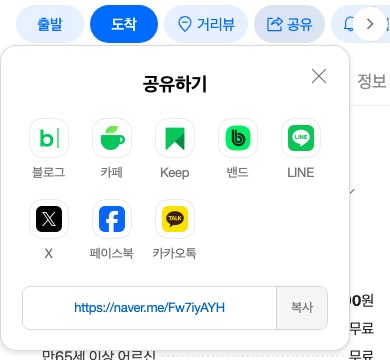
Sharing worked without an account. The place panel’s 공유 (share) button opened a 공유하기 box with Blog, Cafe, Keep, Band, LINE, X, Facebook, and KakaoTalk, plus a naver.me short link and a 복사 (copy) button. NAVER’s PC help describes the same idea for the map: a share button copies the current map’s URL, which you paste with Ctrl+V.
The short link redirected to the same place page on map.naver.com, with a desktop and an iPhone user agent alike. We did not open it on a phone, so we cannot say whether it opens the NAVER Map app.
Our advice: copy the link, send it to yourself, and open it on your phone, where NAVER Map can be set to English (steps in our first guide).
Korean buttons you’ll see (cheat sheet)
| Korean label | What it means |
|---|---|
| 지도 홈 | Map home |
| 길찾기 | Directions (also the find-route button) |
| 버스 | Bus (left menu) |
| 지하철 | Subway map (left menu) |
| 기차 | Train (left menu) |
| 저장 | Save (needs a NAVER sign-in) |
| 더보기 | More (opens Settings and the version info) |
| 설정 | Settings |
| 대중교통 | Public transit |
| 자동차 | Car (driving) |
| 도보 | Walking |
| 자전거 | Bicycle |
| 출발 | Departure (the start point, or the departure time) |
| 도착 | Arrival (the destination, or the arrival time) |
| 다시입력 | Enter again (start the route over) |
| 상세보기 | See details |
| 하차 | Get off (your stop) |
| 도착정보 | Arrival information |
| 이전 / 다음 | Previous / Next (the time pickers) |
| 지금 출발 | Depart now |
| 공유 | Share (opens the share box) |
| 복사 | Copy (copies the link) |
| 로그인 | Sign in |
| 영업 중 / 운영 중 | Open now |
| 운영 종료 | Closed (opens at the time shown) |
Translations are ours, not NAVER’s.
When to switch to the phone app
The phone app is where NAVER puts its language setting: the help page lists Korean, English, Simplified Chinese, and Japanese, and the switch needs version 5.1.3 or later; NAVER calls it the only mapping app in Korea with those four languages. The Android and iPhone steps are in our first guide. Plan on the laptop, navigate with the phone.
Planning with KakaoMap instead? See our KakaoMap desktop test.
What we checked and what we didn’t
How we tested: on September 26, 2026, between 5:07 and 6:30 p.m. Korea time, from an internet connection in Seoul. Most checks used a fresh, signed-out, Chrome-based browser (Chromium 151) set to English; for comparison we repeated the transit route with the browser set to Korean, ran the time checks with the browser set to New York time and to Seoul time, and read the Settings panel once more in a second, signed-in browser.
Not tested: browser translation tools such as Chrome’s Translate; Safari, Firefox, and Edge; Windows; connections from outside Korea; changing the computer’s own time-zone setting (we changed the browser’s); saving and syncing after signing in; opening the shared link on a real phone; other zoom levels of the subway map; and the language of walking and driving directions (we only looked at public transit).
FAQ
Can I switch the NAVER Map desktop site to English?
Not that we could find. On September 26, 2026, the desktop Settings panel had seven options and none was a language, and we found no official page saying the desktop site supports English. An English browser language may show English area and stop names, but menus and buttons stay Korean.
Why do I see English station names but Korean buttons?
Because the English comes from your browser’s language, not from a NAVER setting. In our test, the same route showed English stop names with an English browser and Korean ones with a Korean browser; the buttons were Korean both times.
Do I need a NAVER account to use NAVER Map on a PC?
Not for searching or directions; both worked in a browser that had never signed in. Saving did need one: clicking 저장 (save) sent us to NAVER’s sign-in page.
Why don’t the departure times match Korea time?
Because, in our tests, the desktop site’s transit times followed the browser’s time zone. At 5:20 p.m. in Seoul, a browser on New York time showed the departure as 4:20 a.m. (오늘 오전 04:20 출발), and a departure set to 10:25 a.m. there matched an 11:26 p.m. Seoul-time search. Set your computer to Seoul time while you plan, or convert the times, date included.
Sources
All official pages checked September 2026.
- NAVER Help: language settings (app)
- NAVER press release, October 2, 2024
- NAVER press release, December 30, 2024
- NAVER press release, June 10, 2026
- NAVER Help: English business-name search (PC)
- NAVER Help: driving directions
- NAVER Help: start, end, and waypoints
- NAVER Help: live bus information
- NAVER Help: sharing the map (PC)
- NAVER Map blog: IE11 notice, August 2023
- Our own tests: NAVER Map desktop site (map.naver.com), September 26, 2026.