Blog

  • Can Foreigners Use Kakao Taxi? Kakao T vs k.ride, Cards and Cash (2026)

    Can Foreigners Use Kakao Taxi? Kakao T vs k.ride, Cards and Cash (2026)

    Illustration of a taxi at a city curb at dusk, with a phone showing a map route, a payment card, paper money and a small globe in the foreground
    Calling a taxi in Korea as a visitor (illustration made with web ChatGPT).

    Short answer: yes. Kakao Taxi is booked in the Kakao T app, and its US App Store listing includes English among the app’s languages. Kakao T’s help center, which is in Korean, says the app accepts cards issued outside Korea from Visa, Mastercard, JCB and American Express for taxis, and that on a regular call you can skip card registration and pay the driver directly instead. The catch is signing up: Kakao T asks for identity verification through your mobile phone, and its help center does not explain how a visitor does that. The company behind Kakao T, Kakao Mobility, also runs k.ride, an app for foreign visitors that lets you sign up with Google, Apple or email and calls Kakao T taxis. Below is how the two apps differ, how paying works, and one line in Kakao’s own pages that is easy to misread.

    Last checked: October 7, 2026. We read Kakao T’s Korean help center, Kakao Mobility’s k.ride pages and both apps’ US App Store pages. We did not test inside either app: we did not see their English screens, call a taxi, register a card or create an account.

    Quick answers

    QuestionWhat we found
    Can foreigners use Kakao Taxi?Yes, through the Kakao T app or Kakao Mobility’s k.ride app for foreign visitors
    Is Kakao T in English?Its US App Store listing gives English, Japanese and Korean as the app’s languages. We did not open the app to check its English screens
    Can I pay with a foreign card?Kakao T’s help center lists credit and debit cards issued outside Korea from Visa, Mastercard, JCB and AMEX, for taxi, bike and pet services. The card must be in the same name as your Kakao T account
    Can I pay in cash?In Kakao T, yes. On a regular call you can choose to pay the driver directly, by card or cash, when you get out. The k.ride pages we read do not mention cash
    Do I need a Korean phone number?Kakao T’s help center says you sign up with a Kakao Account and go through identity verification with the phone you will use. It does not say whether a foreign number or a visitor can pass that step. k.ride signs you up with a phone number plus Google, Apple or email
    Which app should I use?See section 5

    1. Two apps, the same taxis

    Kakao T is Kakao Mobility’s app for taxis and other ways of getting around Korea. Its App Store listing says you can “Request a taxi anytime anywhere in Korea” and offers “A wide selection of Blue / Venti / Deluxe / Black.” The same app also handles bikes, parking, trains and more. Its App Store tagline is “for everyone’s movement.”

    k.ride is Kakao Mobility’s app for foreign visitors. The company’s Korean page calls it a global mobility platform for foreigners. In a press release on March 27, 2025, Kakao Mobility said k.ride had been offering calls for Kakao T Blue, Venti, Black and deluxe (mobeom) taxis to visitors to Korea from about 100 countries since its launch.

    Kakao Tk.ride
    Made forAnyone in Korea (its tagline: “for everyone’s movement”)Foreign visitors
    App languages (US App Store)English, Japanese, KoreanEnglish, Japanese, Simplified Chinese, Traditional Chinese, plus searching for destinations and talking to drivers in 133 languages, per its App Store listing
    Sign-upKakao Account, then identity verification with your mobile phonePhone number, then Google, Apple or email
    Foreign cardsVisa, Mastercard, JCB, AMEX for taxisCards issued outside Korea
    Other paymentPay the driver directly on a regular callAlipay+ wallets and WeChat Pay, per its App Store listing
    iPhone requirementiOS 17.0 or lateriOS 15.0 or later

    2. Paying with a foreign card on Kakao T

    Kakao T’s help center has a list of cards you can register, and one entry is “cards issued outside Korea,” credit or debit, from four card companies: Visa, Mastercard, JCB and AMEX. The services listed for those cards are taxi, bike and pet.

    Two conditions come with it:

    • Same name. The help center says a card can be registered if it is in the same name as the account you signed up to Kakao T with.
    • Some cards may still fail. It also says some cards may be hard to register as a payment method, depending on the card company’s policy.

    The help center’s path, written for the Korean app, is My Info (내 정보) at the bottom right, then Manage payment methods (결제수단 관리). We did not check what these are called in the English version of the app. The help center also says foreign cards cannot be used for Kakao T Members, the app’s membership program.

    3. No card? Pay the driver directly

    On a regular call, you do not have to register a card to ride. Kakao T’s help center says taxis can be used without card registration by choosing to pay the driver directly. It describes that option as paying “the fare on the spot, by card or cash, directly to the driver” when you get out, using the card terminal in the car or cash.

    There are limits:

    • Regular calls only. The help center says paying the driver directly is only available on a regular call.
    • Some taxis need a card. If you pick a taxi type that only takes automatic payment, or use the boost call, you need a registered card. The help center lists “credit/debit cards, cards issued abroad and T Points” as the automatic payment methods for taxis.

    The help center’s path for paying directly, again written for the Korean app, is: Taxi > enter your pickup and drop-off locations > choose the regular call (일반) > choose the payment method > Pay directly (직접 결제). The English labels may differ.

    4. Signing up

    Kakao T. The help center says you start by tapping 카카오 계정으로 시작하기 (“Start with Kakao Account” in our translation; we did not see the English button), and that you need to verify the phone number you will use. The code has to be entered within three minutes, and you can ask for it to be sent again; if time runs out, the help center says you have to start the “mobile phone identity verification” (휴대폰 본인 인증) again from the beginning. Kakao T says it asks for verification to prevent misuse and keep transactions safe. Its page on changing verified details asks for Korean documents, such as a resident registration abstract (주민등록초본) when a resident registration number changes, and, as one option for people who became Korean citizens, a passport plus an alien registration card plus a resident registration abstract. The help center does not describe how a visitor without Korean documents verifies, or whether a foreign number works, and we did not test it. If your problem is the Kakao Account itself, see our guide to KakaoTalk verification.

    k.ride. In the same press release, Kakao Mobility’s CEO called k.ride a platform for foreigners that anyone can use “without restrictions on language, account or payment.” The release says you sign up by entering a phone number and then verifying with a Google or Apple account or by email. The App Store listing describes it as authenticating your mobile device or linking a social media account. k.ride’s App Store page also gives customer support hours: 9 AM to 2 AM Korea time, all year.

    5. Which app should you use?

    This is our suggestion, based on the pages above, not on rides we took:

    • Pick k.ride if you do not have a Kakao Account, are not sure Kakao T’s phone identity verification will work for you, want to sign up with Google, Apple or email, want to pay with Alipay+ or WeChat Pay, or want to search for places and chat with the driver in your own language. Kakao Mobility’s page also says visitors to Korea can book a taxi for a set time and place in k.ride.
    • Pick Kakao T if you have already signed up for Kakao T and finished its identity verification, and would rather use it than the visitor app. You can register a Visa, Mastercard, JCB or AMEX card, or pay the driver directly on a regular call.

    Kakao Mobility also says k.ride lets you check the estimated fare before you call a taxi.

    Update, October 8, 2026: if you want food delivered to your hotel or a riverside park, see Food Delivery in Korea for Foreigners for what Baemin and Shuttle say about English screens, foreign cards and ordering without a Korean phone number.

    6. “Only Korean cards” is about a different service

    If you read that Kakao T only takes Korean cards, check where the line comes from. Kakao T has a page for its overseas taxi service, for people using Kakao T outside Korea, that says only domestic-use cards from KB Kookmin, BC, Hana, Lotte, NH and Shinhan can be used there, meaning cards issued in Korea for use in Korea. That page is about riding abroad. For taxis in Korea, the help center lists cards issued outside Korea, as in section 2.

    What we did not test

    • The English screens of Kakao T or k.ride. Everything about the apps here comes from Kakao’s own pages and the App Store listings.
    • Calling a taxi with Kakao T or k.ride, or paying a fare.
    • Registering a foreign card.
    • Signing up with a foreign phone number, or passing Kakao T’s identity verification as a visitor.

    FAQ

    Can I use Kakao Taxi without a Korean phone number? k.ride signs you up with a phone number plus Google, Apple or email. For Kakao T, the help center asks for identity verification with your mobile phone but does not say whether foreign numbers or visitors can pass it. We did not test either.

    Can I pay a Kakao Taxi with cash? In Kakao T, yes: choose to pay the driver directly on a regular call, then pay by card or cash in the car. The k.ride pages we read describe paying with a registered card or mobile payment, and do not mention cash.

    Does Kakao T accept Visa and Mastercard? Kakao T’s help center lists Visa, Mastercard, JCB and AMEX cards issued outside Korea for taxis. The card must be in the same name as your account, and some cards may not register.

    Is k.ride the same as Kakao T? Both are run by Kakao Mobility. Kakao Mobility says k.ride calls Kakao T taxis such as Blue, Venti and Black for foreign visitors.

    Can I book a taxi in advance? Kakao Mobility’s k.ride page says visitors to Korea and Guam can book a taxi for the time and place they want.

    How do I find my destination? If you plan where to go on a computer first, see our guide to KakaoMap in English.

  • NAVER Sign Up for Foreigners: The Form, the SMS Code and the Errors (2026)

    NAVER Sign Up for Foreigners: The Form, the SMS Code and the Errors (2026)

    Illustration of a phone showing a blank sign-up form, a text message bubble, a passport and a small globe, with a city skyline and a river in the background
    Signing up for NAVER as a visitor (illustration made with web ChatGPT).

    Short answer: NAVER’s sign-up page works in English and asks for a mobile phone number that can receive a text message. On October 5, 2026, we opened the English sign-up page in a fresh browser and went through it with made-up details up to the phone number screen, where the country code list offered 215 countries. NAVER’s help pages say you cannot sign up any other way than with a mobile phone, and that it does not send codes to virtual phone numbers. Below is what each screen asked for, what the error messages built into the page say, and what NAVER’s own help pages suggest when the code does not arrive or sign-up is blocked.

    Last checked: October 5, 2026. We used the English sign-up page in a computer browser from a Korean internet connection, at computer and phone width. We did not enter a real phone number, did not receive a code and did not create an account.

    Quick answers

    QuestionWhat we found
    Is NAVER’s sign-up page in English?Yes. The page has a language menu with Korean, English, Simplified Chinese, Traditional Chinese, Japanese and Vietnamese
    Do I need a Korean phone number?The English form let us pick from 215 country codes, including the US, UK, Japan and Australia. We did not test whether a code arrives on a foreign number
    Can I sign up without a phone number?NAVER’s help says you cannot sign up by any means other than a mobile phone
    Can I use a virtual or online SMS number?NAVER’s help says it does not send codes to virtual numbers, and the sign-up page has the error “Anonymous(safe) phone number is not allowed.”
    What does “Sign up is limited temporarily” mean?It is one of the sign-up errors built into the page, and the page tells you to contact Customer Service. We did not see it ourselves
    Do I need a passport to sign up?Not on the screens we saw. The page’s text includes a message, which we did not see on screen, asking new users to verify their identity and age

    How we tested

    On October 5, 2026, we used a new browser profile with no NAVER cookies and the browser language set to English. Then we:

    1. Opened the English NAVER sign-in page and followed its Sign up link.
    2. Ticked only the required Terms of Service and pressed Confirm.
    3. Entered made-up details: the name “Test,” the birth date 19900101 (January 1, 1990) and the gender “Other.”
    4. Stopped at the phone number screen and opened the country code list.

    We did not type a phone number, tick the SMS consent box or press Send Code, so we did not see the ID, password or final screens. We also saved the English text the sign-up page loads with it, which includes its error messages. Our connection was in Korea.

    1. What the sign-up form asks for

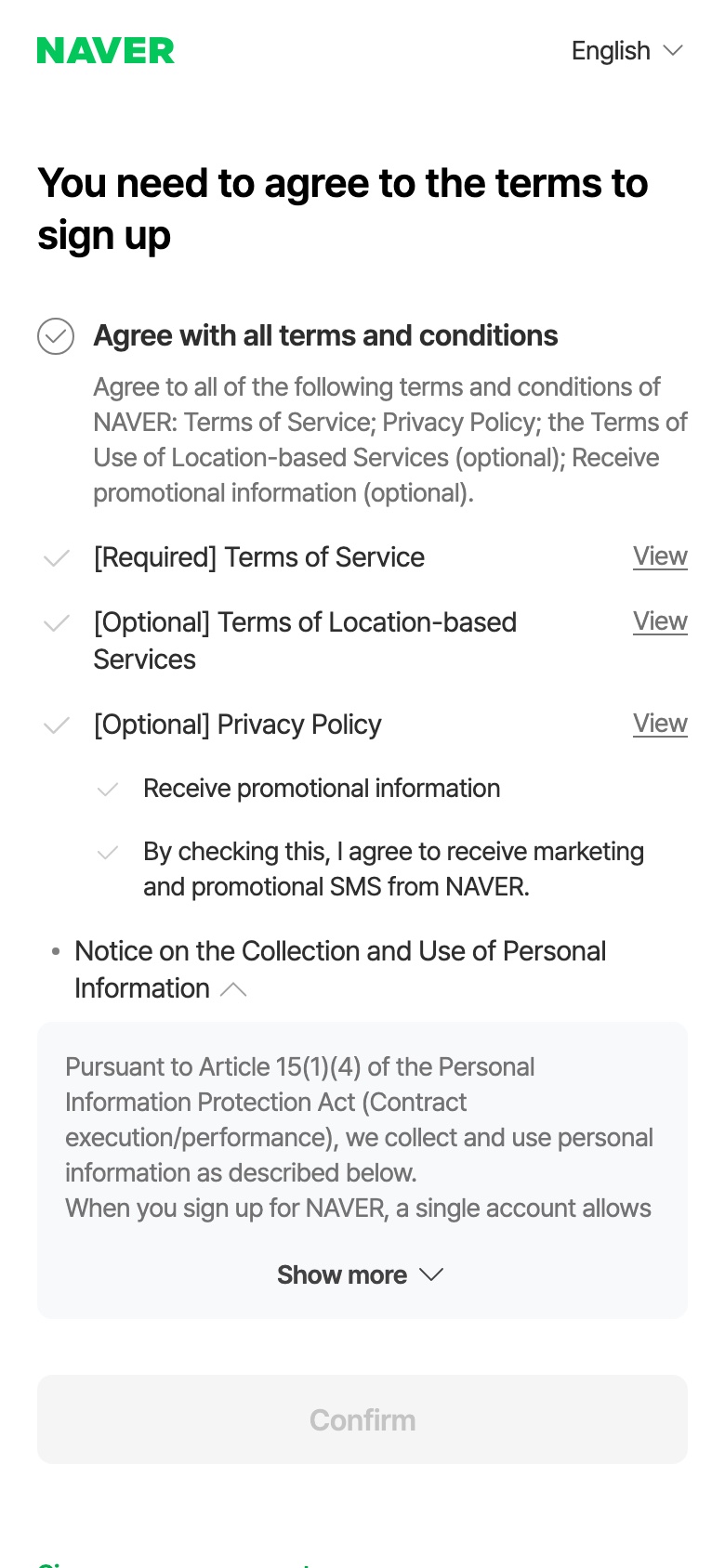
    The English sign-up page started with a terms screen titled “You need to agree to the terms to sign up.” Only the Terms of Service was marked [Required]. Location terms, the privacy policy item and promotional messages were marked optional or listed separately.

    NAVER English sign-up page at phone width: You need to agree to the terms to sign up, with Agree with all terms and conditions, [Required] Terms of Service, optional items and a Confirm button
    The first screen of NAVER’s English sign-up page on October 5, 2026. Only the Terms of Service is marked Required.

    After Confirm, the form asked for one thing per screen, in this order:

    1. Name. The hint said: “Please use Korean or English characters. You can’t verify your legal name if the name do not match the information on your ID.”
    2. Date of birth, as an 8-digit number (for example 19900101).
    3. Gender, with Male, Female and Other.
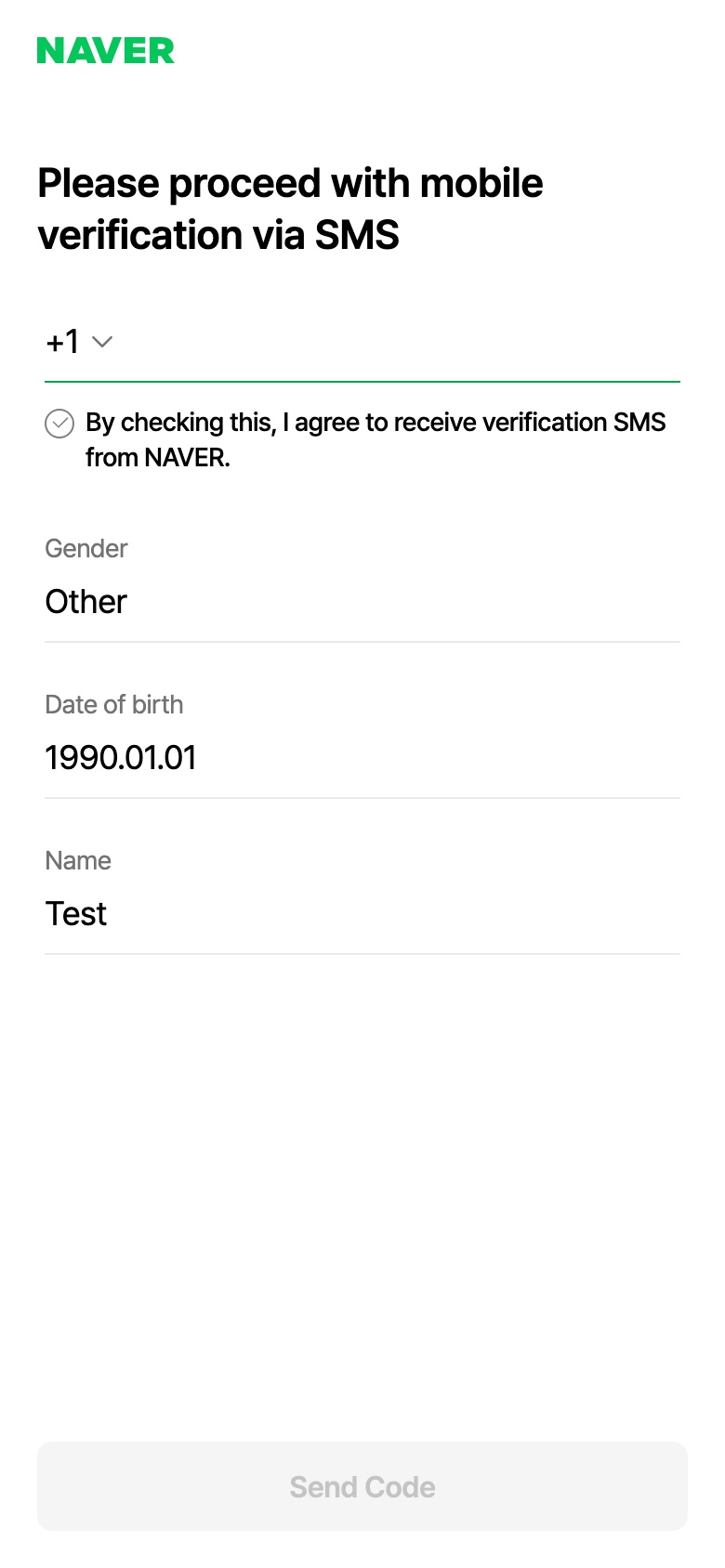
    4. Phone number, under the title “Please proceed with mobile verification via SMS,” with a country code button, a box to agree to receive the verification SMS, and Send Code.
    NAVER English sign-up phone step: Please proceed with mobile verification via SMS, a +1 country code button, an SMS consent box, and the made-up details Test, 1990.01.01 and Other above a Send Code button
    The phone step. +1 was already selected; the name, birth date and gender are made-up test values.

    The text the page loads also has wording for later steps: code-entry text such as Resend and Extend validity; a NAVER ID of 5 to 20 characters (lowercase letters, numbers, underscores and hyphens); and a password of 8 to 16 characters. We did not reach any of those screens, so we cannot confirm how or in what order they appear.

    Our recommendation: use your real name, date of birth and gender, exactly as they appear on your ID, for example your passport. NAVER does not ask for a passport on the screens we saw, but its help says you may not be able to verify your legal name if the name, date of birth and gender on your account do not match your ID. The same three details come up again if your account is ever restricted (see section 5).

    2. Picking your country code

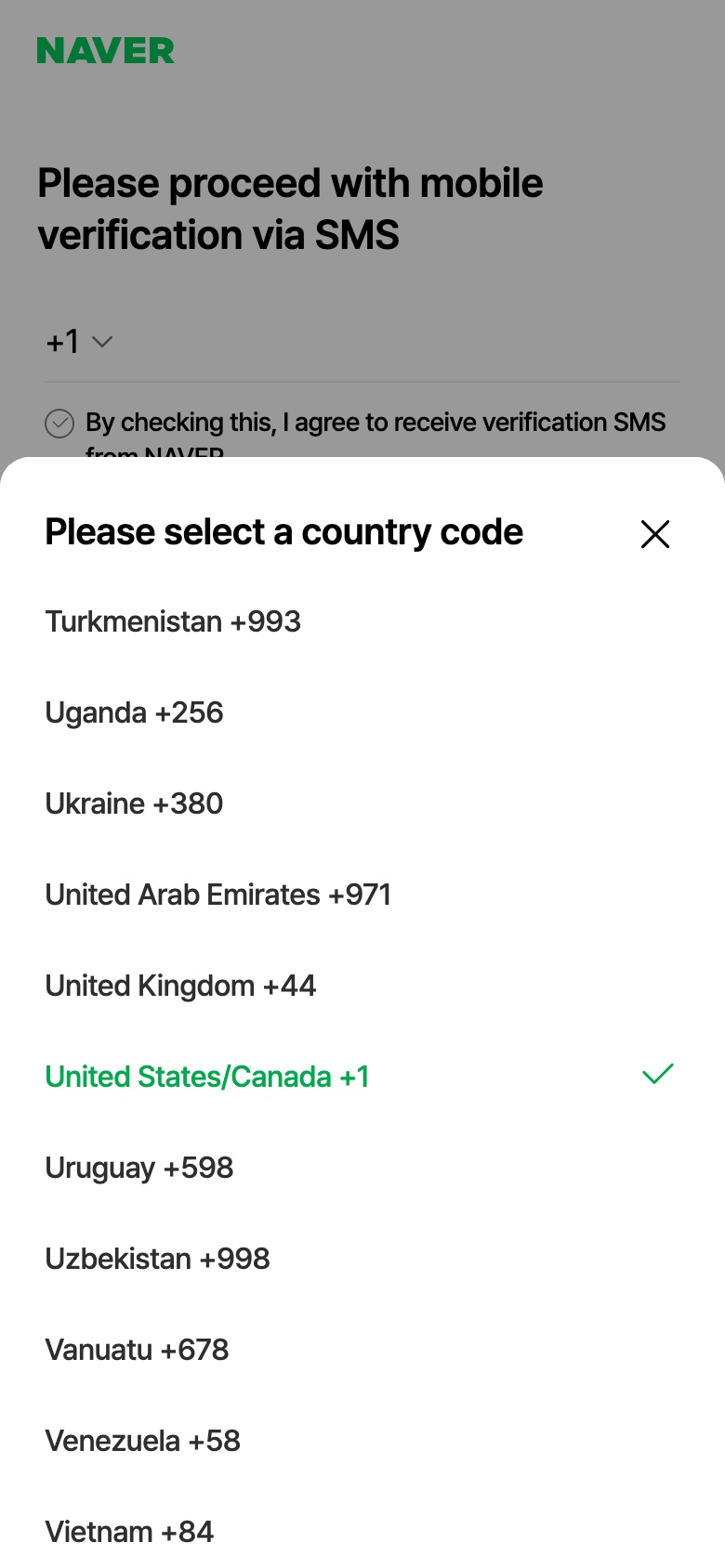
    The phone screen showed +1 before we chose anything. Tapping it opened “Please select a country code,” a list of 215 countries in alphabetical order, from Afghanistan +93 to Zimbabwe +263, with United States/Canada +1 ticked. The list included Korea (Rep. of) +82, Japan +81, China +86, the Philippines +63, Australia +61, Germany +49 and the United Kingdom +44.

    NAVER sign-up country code list in English, showing Turkmenistan +993 to Vietnam +84, with United States/Canada +1 ticked
    Tapping +1 opens a list of 215 country codes. We did not enter a phone number.

    So at this step the form lets you pick a foreign country code. Whether a text actually arrives is a different question: NAVER’s help says that in some countries text messages may be delayed, and that you may need to wait a few minutes for the code.

    3. “Sign up is limited temporarily”

    This message is one of the sign-up errors written into NAVER’s English sign-up page: “Sign up is limited temporarily. Please contact Customer Service.” In the page’s code, its label is ipBlocked, which suggests it is tied to the internet connection you sign up from rather than to your details. We did not trigger it, so we cannot say exactly when it appears.

    Separately, NAVER’s help pages describe login restrictions for accounts created through an abnormal process. They say that when there are attempts to sign up through an abnormal process under an unsafe environment, the login will be restricted, and that NAVER restricts logging in for accounts created abnormally in an unsafe environment because they are likely to have been created with stolen personal information.

    What we would try, in this order:

    1. Wait and try again later, on a connection you normally use, such as your home internet or your phone’s data, with any VPN turned off. This is our suggestion, not NAVER’s.
    2. If it keeps appearing, do what the message says and contact NAVER Customer Service. The help page on verification problems links to a form to “Leave an inquiry regarding mobile authentication failure when signing up.”

    A related error: the page also has “The country code of the phone number does not match the country information of your IP.” That wording suggests NAVER compares the country code you pick with the country your connection appears to be in. Our suggestion, which we have not tested: check the country code first, and if you use a VPN, which can make your connection appear to be in another country, try again with it turned off. We did not trigger this error either.

    4. The verification code doesn’t arrive

    NAVER’s help pages list these checks:

    • Spam filters. Check whether a spam blocker app filtered the text. NAVER’s text messages come from 1588-3820, which NAVER calls its official help center number, so check that numbers starting with 1588 are not blocked on your phone.
    • Virtual numbers. NAVER says it does not send a verification code to virtual phone numbers, and asks you to try again with the original number.
    • Delays abroad. In some countries, text messages may arrive late. NAVER’s help says you may need to wait a few minutes for the code to arrive.
    • Limits on the same number. NAVER’s help says one number can be used to verify once a month and three times in six months, and that only three accounts can be registered with it. One help page notes the once-a-month rule for valid Korean numbers.

    The page’s text also includes code-screen wording such as Resend, Extend validity and “Didn’t receive the verification code?” We did not reach that screen.

    5. Why not use an online SMS number

    Several of the top Google results for these searches sell temporary or “virtual” numbers for NAVER sign-up. We do not recommend them, for three reasons from NAVER’s own pages:

    • NAVER’s help says it does not send codes to virtual phone numbers, and the sign-up page has a ready-made error for them: “Anonymous(safe) phone number is not allowed.”
    • NAVER’s help says that if account details do not match the mobile phone subscriber’s name, date of birth and gender, login restrictions cannot be lifted, and gives the example of signing up with a nickname instead of a real name.
    • If your account’s login is restricted and you live outside Korea and cannot verify yourself, NAVER’s help asks you to send a copy of an ID issued in your country of residence, such as a foreign passport, foreign driver’s license or foreign residence permit, with a request to lift the restriction. It says the ID must include the name and date of birth entered in the account. An expired ID cannot be processed, and requests from overseas may take longer.

    In short: an account made with a borrowed number and made-up details can be hard to get back if NAVER restricts it. Use your own number and your real details.

    6. After you sign up

    The sign-up page’s text includes this message: “Your Naver account has been created. Please verify your identity and age to use the service.” We did not create an account, so we did not see when it appears. NAVER’s help says foreign nationals can verify their identity with their passport when using reservation or ordering services. If that step fails, see our guide to NAVER passport verification.

    Two more things from NAVER’s help:

    • One name can have up to three NAVER accounts.
    • Users who are categorized as foreigners may be partially restricted from some NAVER services; the help page gives AdPost as an example.

    Once you have an account, you can save places in NAVER Map. See our guide to NAVER Map bookmarks.

    What we did not test

    • Receiving a verification code on a foreign or Korean phone number.
    • The ID, password and final screens.
    • The “Sign up is limited temporarily” and country code errors, and what triggers them.
    • Signing up from outside Korea, on the NAVER app, or on the Korean-language sign-up page.

    FAQ

    Can I make a NAVER account without a Korean phone number? The English sign-up form let us choose from 215 country codes at the phone step. We did not test whether the code arrives. NAVER’s help says texts may be delayed in some countries.

    Can I sign up with an email address instead of a phone number? NAVER’s help says you cannot sign up by any means other than a mobile phone. The phone does not have to be in your name.

    Can children sign up in English? NAVER’s help says children under 14 can sign up with a parent’s consent through the Korean page.

    How many NAVER accounts can I have? NAVER’s help says up to three accounts per name, and up to three accounts can be registered with one phone number.

    I just need NAVER Map. Do I need an account? For getting around, start with our NAVER Map guide for foreigners. Saving places needs an account: in our October 4 test, NAVER Map’s save button sent a browser that was not signed in to the NAVER sign-in page.

  • NAVER Map Bookmarks: How to Save Places, Make Lists and Share Them (2026)

    NAVER Map Bookmarks: How to Save Places, Make Lists and Share Them (2026)

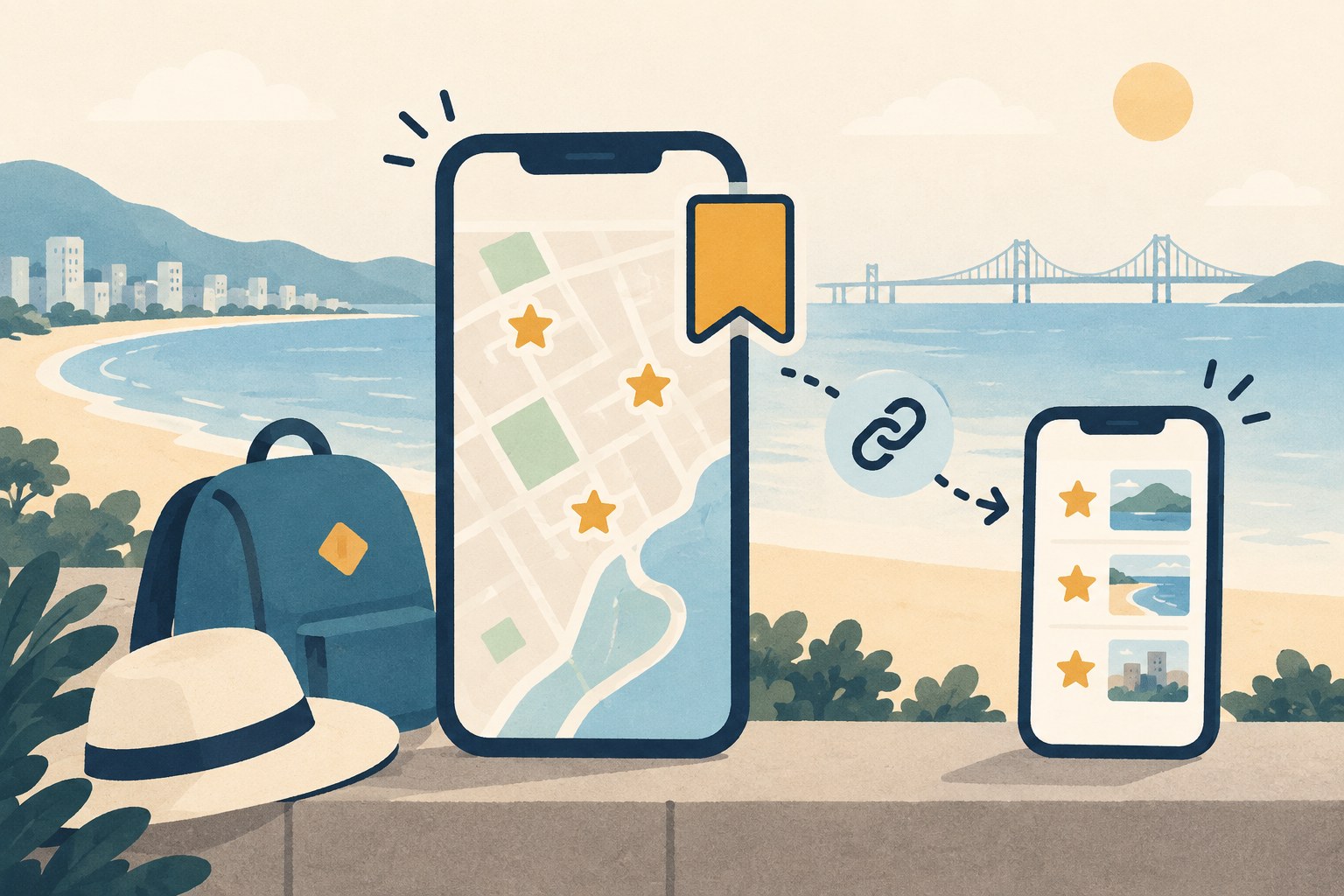
    Illustration of a phone showing a simple map with three star pins and a bookmark ribbon, sharing a link to a second phone with a starred list, with a beach and a bridge in the background
    Saved places, a list and a share link (illustration made with web ChatGPT).

    Short answer: tap the star on a place, pick a list (or create one), then tap Save. You need a NAVER account to save: without signing in, NAVER’s save buttons sent us to the sign-in page. But the person you share a Link-only list with did not need an account to view it. On October 4, 2026, we made a test list in the NAVER Map iPhone app with the app set to English, saved two places in Busan, shared the list, opened the link in a browser that was not signed in, and then deleted the list. This guide covers what we saw at each step, including two things to know before you share: the link shows your NAVER nickname, and deleting a list also deletes the places in it.

    Last checked: October 4, 2026. We tested the iPhone app (version 6.10.1, as shown in the app) with its language set to English, and NAVER Map on a computer browser. We did not test the Android app.

    Quick answers

    QuestionWhat we found
    Do I need a NAVER account to save places?Yes. Without signing in, the save button on the computer site sent us to the NAVER sign-in page
    What is the Saved tab called in English?Bookmark. It is the last tab at the bottom of the app
    Can my travel partner see my list without an account?Yes for our Link-only list: a browser that was not signed in showed the list, both places, our place nickname and our note. We did not open a Public list
    Does the shared list show who made it?Yes. The shared page showed the list owner’s NAVER nickname and profile picture
    Why don’t my saved places show on the map?When we closed the list, its stars were not on the map. Open the list, or tap Nearby saved at the top of the map
    What happens if I delete a list?The app warns that the saved places in it are deleted too, and the shared link stops working

    How we tested

    We used an iPhone with the NAVER Map app, version 6.10.1, signed in to a NAVER account. We switched only the app to English (the phone stayed in Korean). Then we:

    1. Searched for Haeundae Beach in Busan and saved it into a new list called “KS test,” set to Link-only access.
    2. Saved Busan Haeundae Traditional Market into the same list, with a note and a map nickname.
    3. Checked whether the list appeared on the NAVER Map computer site.
    4. Opened the share link in a browser that was not signed in to NAVER, at phone size and computer size.
    5. Deleted the list and opened the same link again.

    1. Set NAVER Map to English (iPhone)

    On our iPhone, the language screen said NAVER Map uses the first supported language in the phone’s language and region settings, and that you can pick a different language for NAVER Map alone. To change only NAVER Map, go to the iPhone Settings app, then Apps → NAVER Map → Language, and pick English. Our phone was in Korean, so the labels we saw were 설정 > 앱 > 네이버지도 > 언어; the English names above are our translation. In our test the language list offered Korean, English and Simplified Chinese as recommended languages, with Japanese and Traditional Chinese under other languages.

    There is also a Language line inside NAVER Map’s own settings. In our test tapping it did not open anything; its info note pointed to the phone’s language and region settings instead.

    2. How to save a place

    1. Search for the place and open its card.
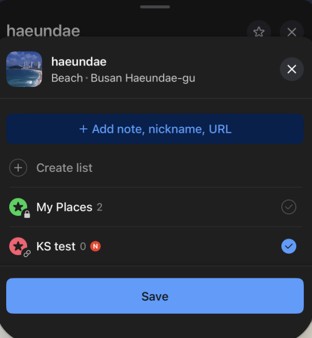
    2. Tap the star on the card. A panel opens instead of saving right away.
    3. Pick a list, or tap Create list to make a new one.
    4. Tap Save. The star on the card turns green.
    NAVER Map iPhone app in English: the save panel for haeundae beach with Add note, nickname, URL, Create list, My Places and a ticked list called KS test above a blue Save button
    The save panel in NAVER Map’s iPhone app (English) on October 4, 2026: pick a list, then tap Save.

    The Save button stays grey until you pick a list. In our test the panel did not remember the list we had used last: when we saved a second place, no list was ticked, so check the tick before you tap Save. Our account also had a list called My Places, marked Private.

    Add a note or a map nickname. In the same panel, tap Add note, nickname, URL. You get three boxes: a note (up to 50 characters), a nickname that appears on the map (up to 25 characters) and a URL. We typed a short test note (“Opens 09:00”) and the nickname “Fish lunch.” When we opened the list, the map showed “Fish lunch” next to the star instead of the market’s name. A nickname is a quick way to remember why you saved a place.

    NAVER announced in 2022 that you can save up to 5,000 places.

    3. Make a list for your trip

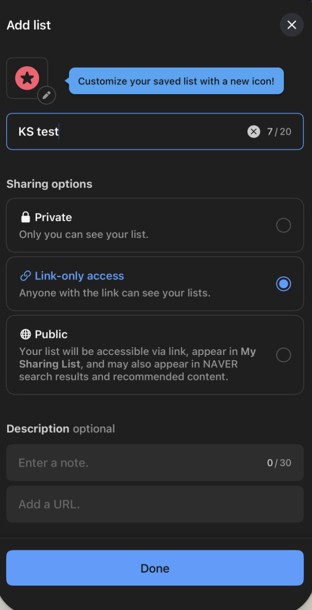
    When you tap Create list, you get a name box (up to 20 characters), an icon, an optional description and three sharing options:

    • Private (the default): “Only you can see your list.”
    • Link-only access: “Anyone with the link can see your lists.”
    • Public: your list “will be accessible via link, appear in My Sharing List, and may also appear in NAVER search results and recommended content.”
    NAVER Map iPhone app Add list screen with a list name box and three sharing options: Private, Link-only access and Public
    Creating a list: the name box and the three sharing options. We chose Link-only access.

    For a trip you plan with someone else, Link-only access is the middle option: anyone who has the link can open the list (and see your NAVER nickname), but unlike Public, the app does not say it will appear in My Sharing List or NAVER search. After we tapped Done, the new list was already ticked in the save panel.

    4. Share a list with your travel partner

    1. Tap the Bookmark tab at the bottom of the app and open the list.
    2. Tap Share. On our iPhone this opened the phone’s share sheet with a short naver.me link.
    3. Send the link however you like.

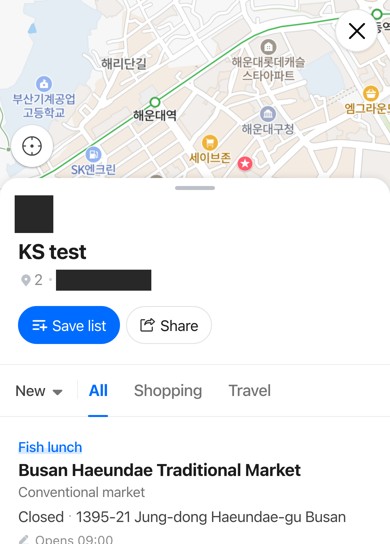
    What the other person sees. We opened the link in a browser that was not signed in to NAVER. At phone size, the page showed the list name, both places, our place nickname “Fish lunch” and our note, with English buttons such as Save list and Share. At computer size, the same list opened on the NAVER Map site, which showed its menus in Korean even though the browser was set to English.

    Shared NAVER Map list opened in a phone browser that is not signed in, showing the list name KS test, Save list and Share buttons, and a saved market with the nickname Fish lunch
    Our shared list opened in a browser that was not signed in. The page also showed the owner’s NAVER nickname and picture, which we have blacked out.

    Two things to know before you share:

    • Your NAVER nickname goes with the list. The shared page showed the list owner’s NAVER nickname and profile picture. If you would rather not show yours, check it in your NAVER profile before you share.
    • Viewing needs no account, saving does. When the browser that was not signed in tapped Save list, it went to the NAVER sign-in page. So your partner can open a Link-only list without an account, but has to sign in to save it. We did not go past the sign-in page.

    In its 2022 announcement, NAVER said that a friend you share a list with can see the places you add later in real time. We did not test later changes.

    Same account on the computer. When we checked the NAVER Map computer site a few minutes after creating the list, while signed in to the same account, the list was there with the same note and nickname, and labeled 일부공개 (partly public), which matches Link-only access.

    5. Saved places not showing on the map?

    Google suggests the search “naver map not showing bookmarks,” so we checked it. Here is what we saw:

    • With the list closed, its stars were not on the map. After we closed the list and went back to the main map, the Haeundae area showed no stars for our two saved places.
    • Open the list, and the stars appear. When we opened the list from the Bookmark tab, both places showed as red stars, with our nickname on the map.
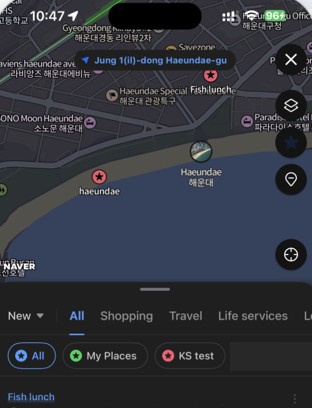
    • Or tap Nearby saved. The Nearby saved button at the top of the map showed our saved places in the area as stars, with filters for each list.
    • Check whether the list is hidden. A list’s Edit menu has a Hide on your map option. We did not test it, but if one list never shows up, look there first.
    NAVER Map iPhone app after tapping Nearby saved: red star pins on a map of Haeundae, with filters All, My Places and KS test
    Nearby saved shows your saved places on the map, with a filter for each list. We blacked out the name of a personal list.

    If saved places seem to have disappeared from a list, it is not always your phone. NAVER posted a notice that on January 30, 2026, for about 10 hours, saved places did not appear in lists and the screen turned white when sharing, and that the problem was fixed.

    6. Delete a list (and what you lose)

    In the list, tap Edit. The menu has four options: Edit list info, Hide on your map, Edit place list and Delete. When we tapped Delete, the app asked: “Delete the list? Deleting a list will also remove the saved places in it.”

    So if you want to keep a place, save it into another list before you delete. After we deleted our test list, the share link showed “Unable to see the list as it has been deleted.”

    Saving routes

    The Bookmark tab has a separate Routes tab next to Places. In our October 3, 2026 test for our offline guide, with a connection and the app in Korean, saving a public transit route from the route screen’s menu put it in that Routes tab, not in a list. See NAVER Map offline for what happened when we cut the internet.

    What we did not test

    • The Android app.
    • What the Hide on your map option changes.
    • Whether a list your partner saves with Save list updates when you change yours.
    • Saving routes with the app in English.
    • Saving places on the computer site while signed in.

    FAQ

    Can I save places on NAVER Map without an account? Not in our test. Without signing in, the save button on the computer site sent us to the NAVER sign-in page. If you need an account, see our guide to NAVER passport verification.

    How many places can I save? NAVER announced a limit of 5,000 saved places in 2022.

    Can I use my saved list on a computer? Yes. Our list showed up on the NAVER Map computer site under the same account. In our test the computer site showed its menus in Korean; see NAVER Map on desktop in English for what works there.

    Is NAVER Map available in English? The iPhone app we tested (version 6.10.1) can be set to English. See our NAVER Map guide for foreigners to get started.

  • NAVER Map Offline: Does It Work Without Internet? We Tested It (2026)

    NAVER Map Offline: Does It Work Without Internet? We Tested It (2026)

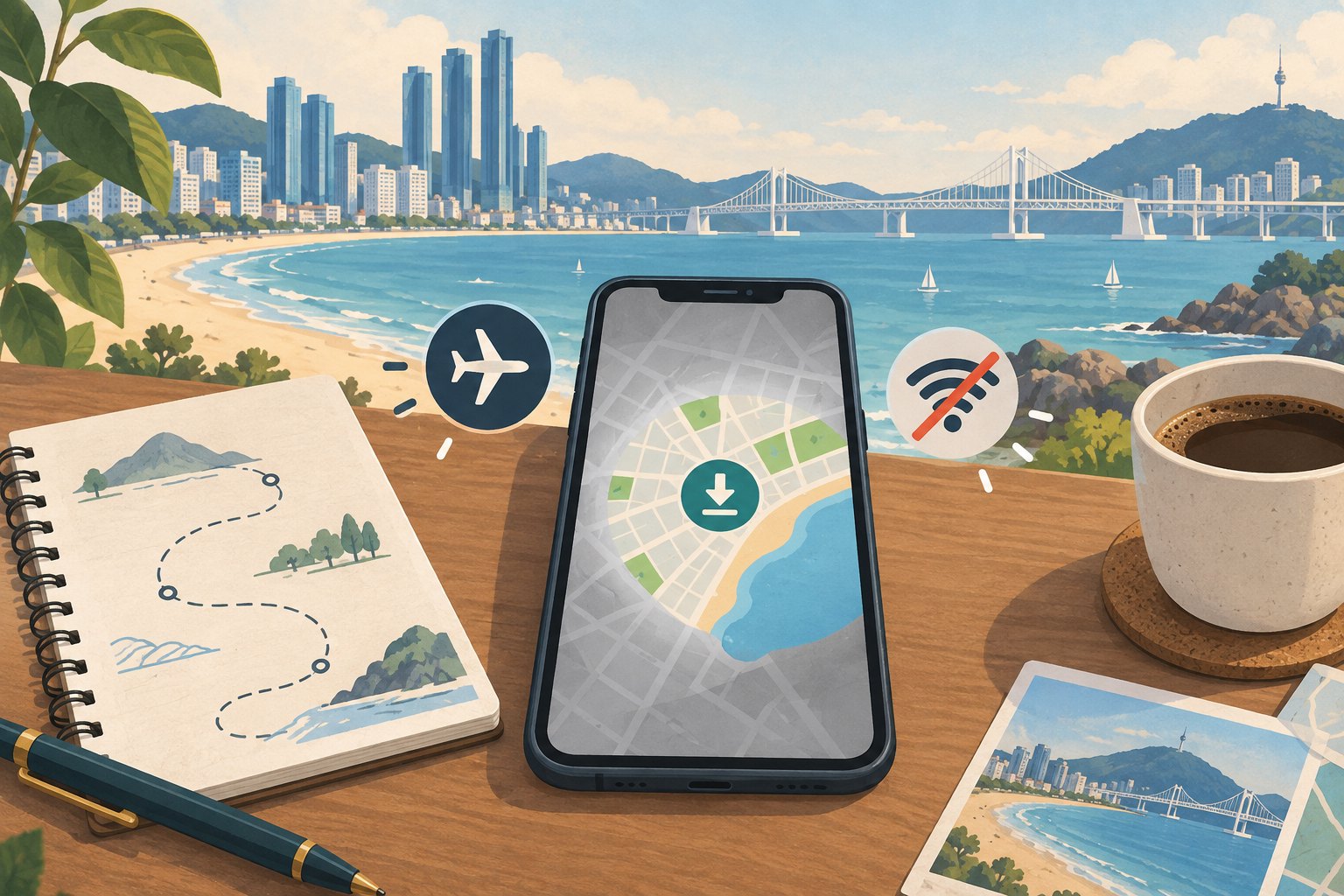
    Illustration of a smartphone showing a simple map with a download icon, next to an airplane-mode icon and a crossed-out Wi-Fi icon, with Haeundae Beach and Gwangan Bridge in the background
    Downloading the map did not get us past the connection warning (illustration made with web ChatGPT).

    Short answer: not in our test. On October 3, 2026, we downloaded a region’s map inside the NAVER Map iPhone app, then turned on airplane mode and turned off Wi-Fi. The app opened to a warning saying NAVER Map needs an internet connection and would not show the map. The phone owner reported that tapping OK only brought the same warning back. NAVER Map does have a map download option, but it sits in the car navigation settings, and NAVER’s help page describes it as a way to use less data. Plan for a data connection, and prepare a few things before you lose signal.

    Last checked: October 3, 2026. We tested the iPhone app (version 6.10.1, as shown in the app). We did not test the Android app.

    Quick answers

    QuestionWhat we found
    Can NAVER Map open with no internet?Not in our test. Starting it with no internet, it showed a “needs an internet connection” warning and no map
    Is there a map download option?Yes: 권역별 지도 다운로드 (regional map download), inside the car navigation settings
    Does downloading the map make it work offline?It did not get us past the warning when we started the app offline. We could not tell whether it helped the map after the connection dropped
    What if the app is already open when you lose signal?The Haeundae Beach screen we had open stayed. When we moved the map, some areas showed only street lines
    What should I do instead?Get mobile data for your trip, and screenshot your routes before you go

    How we tested

    We used an iPhone with the NAVER Map app, version 6.10.1. While connected to Wi-Fi, we downloaded the 경남권 (Gyeongnam) region, which includes Busan. We also searched for Haeundae Beach and saved it, and saved a public transit route from Busan Station to Haeundae Beach. Then we cut the internet in two ways:

    1. We turned on airplane mode, turned off Wi-Fi and then opened the app.
    2. With the app already open on Haeundae Beach, we turned on airplane mode and turned off Wi-Fi, then moved the map.

    One catch for your own test: when we only turned on airplane mode, our phone stayed connected to Wi-Fi, so we also had to turn Wi-Fi off.

    1. Where the map download is, and what it is for

    Where to find it:

    1. In NAVER Map, tap your profile icon at the top right (MY).
    2. Tap the gear icon (설정, Settings).
    3. Tap 차량 내비게이션 (car navigation).
    4. Scroll to the bottom and tap 권역별 지도 다운로드 (regional map download).
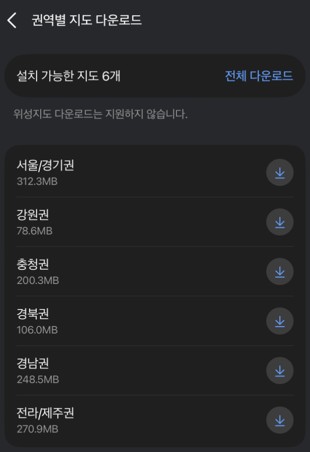
    NAVER Map iPhone app screen 권역별 지도 다운로드 listing six regions with their sizes and download buttons
    The 권역별 지도 다운로드 (regional map download) screen in NAVER Map’s iPhone app on October 3, 2026: six regions, and a note that satellite maps cannot be downloaded.

    In our app the list showed six regions you could install, from 강원권 (Gangwon) at 78.6MB to 서울/경기권 (Seoul and Gyeonggi) at 312.3MB. Busan is in 경남권, at 248.5MB. A line under the title says, in Korean, that satellite map download is not supported. On our Wi-Fi, the 경남권 download took about a minute.

    What NAVER says it is for. NAVER’s Korean help page about this option is titled, in our translation, “How to reduce navigation data use.” It says NAVER’s navigation downloads only the parts of the map it needs as you drive, and that if you download the map in advance, you use only a small amount of data for real-time traffic. The page does not say the app works without internet. Its path names the menu 내비게이션 설정; in our app the menu was called 차량 내비게이션.

    2. What happened when we went offline

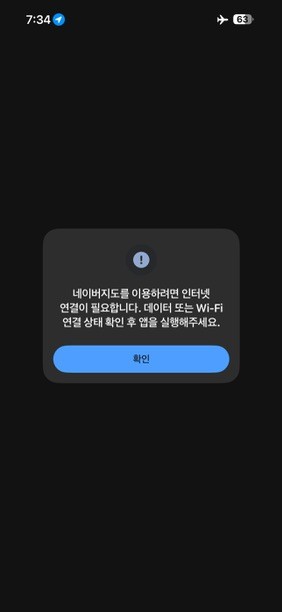
    Opening the app with no internet. We had already downloaded 경남권. The app did not show a map. It showed this message:

    네이버지도를 이용하려면 인터넷 연결이 필요합니다. 데이터 또는 Wi-Fi 연결 상태 확인 후 앱을 실행해주세요.

    In English: to use NAVER Map you need an internet connection; check your data or Wi-Fi connection and then open the app. The phone owner reported that tapping 확인 (OK) brought the same message back and that they could not get past it; we do not have a second photo of that step.

    NAVER Map iPhone app in airplane mode showing a Korean warning that an internet connection is needed, with an OK button
    What NAVER Map showed when we opened it with airplane mode on and Wi-Fi off, even with the region downloaded (October 3, 2026).

    Losing signal with the app already open. This tests what happens when the connection drops while you are using the app. The Haeundae Beach screen we had open stayed on screen, with the shop names and the place card. When we moved the map, it was patchy: one area showed only thick street lines with almost no buildings or names, another showed streets with school and park names, and a third showed only a few lines and names. We cannot tell you which parts came from the download and which were left over from what we had just viewed, because we did not repeat the test without the download. Our tester’s impression was that the map was not really usable.

    We did not get photos of the 저장 (Saved) tab while offline, so we cannot tell you whether a saved route opens without internet.

    3. What to do instead

    1. Get mobile data for your trip. NAVER Map stopped at a connection warning when we started it offline, so a data plan that works in Korea (an eSIM, a SIM card or portable Wi-Fi) matters more than any download.
    2. Screenshot your routes before you leave Wi-Fi. Open each route in NAVER Map and take a screenshot of the steps, so you have a copy of the directions that does not depend on the app.
    3. Keep the app open on the area you need. In our test, the screen that was already open stayed after we lost signal. Do not count on moving the map, though.
    4. Save the Korean name and address of where you are going. You can show it to a taxi driver even if the app will not load.
    5. Download the region if you will drive. NAVER describes the download as a way to use less data during navigation. That is useful, but NAVER does not present it as an offline mode, and it did not get us past the warning.

    If NAVER Map will not load even with a connection, see our guide to NAVER Map not working. If you are just getting started, see our NAVER Map guide for foreigners.

    What about KakaoMap?

    We did not test the KakaoMap app offline. On Kakao’s developer forum, a Kakao reply says KakaoMap service and the KakaoMap API can be used only online. That reply was written for developers, so treat it as a hint, not a test of the app.

    What we did not test

    • The Android app.
    • Whether a saved place or a saved route opens offline.
    • The same offline test without downloading the region first, which would show what the download changes.
    • The KakaoMap app offline.
    • Whether the map download helps once you have signal again.

    FAQ

    Can I download NAVER Map for offline use? You can download regional maps under the car navigation settings, but in our test the app still stopped at a connection warning when we started it without internet.

    Why does the download exist, then? NAVER’s help page describes it as a way to use less data during navigation.

    Can I use NAVER Map without a Korean SIM? In our test the app stopped at a connection warning when we started it without internet, so arrange a working internet connection for your trip. Our test used Wi-Fi.

  • NAVER Map Not Working? Fixes for a Wrong Location, a Blank Map and Sign-In (2026)

    NAVER Map Not Working? Fixes for a Wrong Location, a Blank Map and Sign-In (2026)

    Illustration of a laptop showing a simple city map with a teal location pin and a dashed amber circle nearby, beside gear and Wi-Fi icons
    Wrong spot, blank map, no sign-in: each fix below starts with what to do (illustration).

    If NAVER Map opens on the wrong neighborhood on a computer, it may not be broken. NAVER’s own settings panel says the desktop site, by default, predicts your location from your IP address, and in our test it did not ask the browser for its location at all. You can set the location yourself under 더보기 → 설정 → 접속 위치 설정. On October 2, 2026, we tested that setting and a few other common problems on map.naver.com. Below, each problem starts with what to do, then what we saw.

    Last checked: October 2, 2026. We tested the desktop website, map.naver.com, in a Chrome-type browser. We did not test the phone apps; for those we report what NAVER’s help pages say.

    Quick fixes

    What you seeDo this firstSection
    The map opens on the wrong neighborhood, and the location button does not move it (computer)Set your location by hand in 접속 위치 설정1
    The side panel works but the map itself is blankTurn off your ad blocker for NAVER Map, or try another network2
    The whole page is emptyCheck that JavaScript is on, then reload2
    The phone app is slow or will not openSwitch between Wi-Fi and mobile data3
    You cannot sign inYou may not need to: on the website, search and directions worked signed out in our test4
    Your saved places are missingCheck that you are signed in, then check NAVER’s notices5

    How we tested

    For every test we opened map.naver.com in a fresh Chromium browser window that was never signed in to NAVER, with the browser language set to US English, the time zone set to Seoul and a 1440×900 window, from an internet connection in Seoul. All tests ran on October 2, 2026, between 9:30 and 9:50 p.m. Korea time. Some tests were experiments: we blocked something on purpose to see what the page looks like when it is blocked. We say so where we did.

    1. Wrong location on a computer

    What to do:

    1. Open map.naver.com and drag the map to where you are (or where you want the map to start).
    2. Click 더보기 (More) in the left menu, then 설정 (Settings).
    3. Click 접속 위치 설정 (access-location setting).
    4. Choose 직접 설정 (Set manually), move the map to the place you want, and click the blue 저장 (Save) button.
    5. To undo it later, come back to the same panel, choose 자동 (Automatic) and click 저장 again.
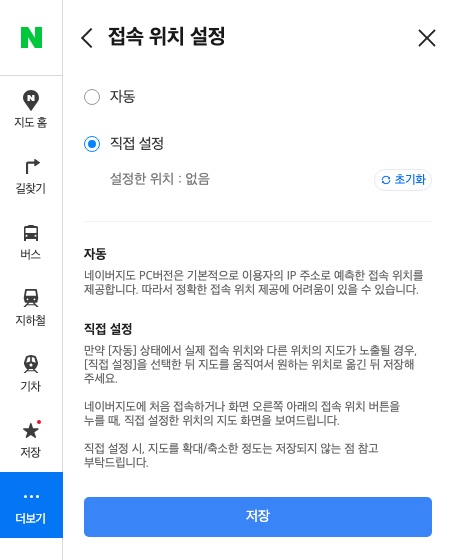
    NAVER Map desktop access-location settings panel (접속 위치 설정) with 직접 설정 selected and a blue 저장 button
    NAVER Map’s 접속 위치 설정 panel on October 2, 2026, with 직접 설정 (Set manually) chosen. Its text says the PC version predicts your location from your IP address.

    Why this happens. The panel explains it in Korean: “네이버지도 PC버전은 기본적으로 이용자의 IP 주소로 예측한 접속 위치를 제공합니다.” In English: by default, the PC version of NAVER Map shows an access location predicted from the user’s IP address, so it may be hard to give an accurate location. Next to the location button at the bottom right of the map, a note reads “실제 접속 위치와 다르다면?”, meaning “Different from where you really are?”

    What we saw. When we first opened the site, it showed a Seoul neighborhood without asking for the browser’s location. We then pressed the 접속위치 (access location) button in three set-ups: with location permission not given, with permission given and a position at Gyeongbokgung Palace, and with permission given and a position in New York. We granted the permission and set those positions in our test browser; our internet connection stayed in Seoul. All three times the map stayed on the same neighborhood, and the page address did not change. With permission given, we also recorded whether the page asked the browser for its location at all; it did not, at any point.

    Then we followed the steps above. After we clicked 저장, the panel showed “저장이 완료되었습니다” (“Saved”). A new tab in the same browser opened on a different neighborhood from before, and pressing 접속위치 kept it there. Oddly, the panel’s “설정한 위치” (set location) line still read 없음 (“none”); we did not find out why. When we switched back to 자동 and saved, a new tab opened on the original neighborhood again.

    Three things to know:

    • The panel says the zoom level is not saved; only the place is.
    • When we opened the map from a link that already pointed at a place, the 자동 and 직접 설정 choices stayed greyed out for more than 20 seconds. From the normal home page, map.naver.com, they worked.
    • We checked the setting only in new tabs of the same browser. We did not check whether it stays after you close the browser.

    On a phone. We did not test the phone apps, and we did not find a NAVER help page about the phone location to quote.

    2. The map is blank or will not load (computer)

    What to do:

    1. Reload the page.
    2. If the side panel shows place details but the map area is a blank grid, turn off your ad blocker or privacy extension for map.naver.com, or try another network. The map pictures come from a separate address, map.pstatic.net.
    3. If the whole page is empty, check that JavaScript is turned on in your browser.
    4. Try another browser. NAVER’s help page for a slow map on PC links to checks for Chrome, Whale, Edge and Firefox.
    5. If nothing works, NAVER’s help page says to press the error-report button at the bottom of that page to file an inquiry.
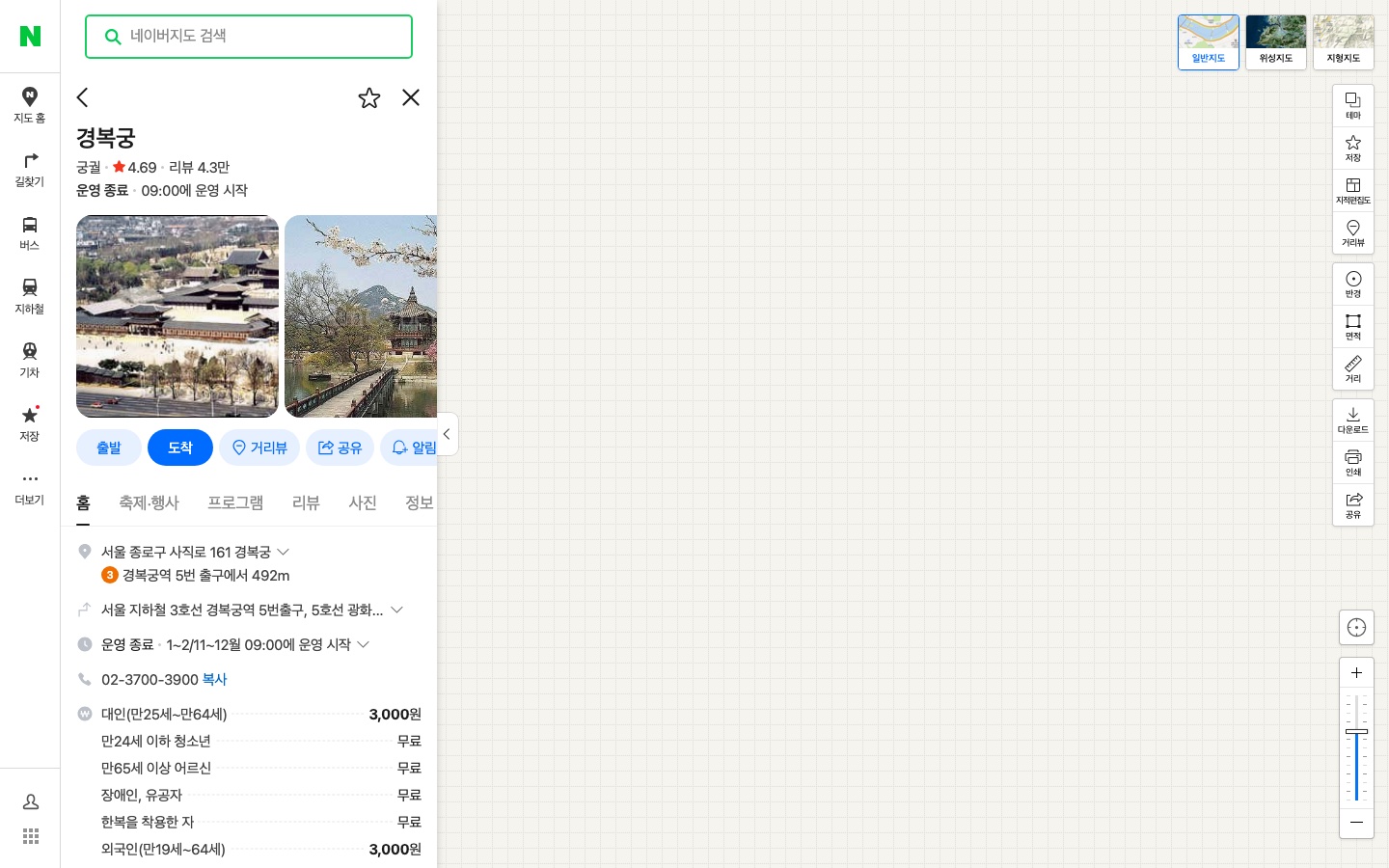
    NAVER Map desktop page for Gyeongbokgung with the place panel showing and the map area a blank grid
    Our experiment on October 2, 2026: with map.pstatic.net blocked on purpose, the Gyeongbokgung panel still appeared but the map area was a blank grid.

    What NAVER says. NAVER’s help page for a slow map on PC says the cause may be the browser or the network you are using. Its two fixes are to check your network and to run the browser-specific checks.

    What we saw. These were experiments, not real outages.

    • Normally, the Gyeongbokgung page loaded all 139 map pictures.
    • When we blocked map.pstatic.net on purpose, as an ad blocker or office firewall might, the map area turned into a blank grid. The search box and the place panel still appeared: the palace’s name, rating, opening hours, address and fees were all there.
    • With JavaScript turned off, the same address answered normally but the page was completely empty.
    • The old addresses we tried still worked. map.naver.com/v5/ and map.naver.com/index.nhn sent us to the current site, map.naver.com/p/, and the map loaded.

    When we loaded the home page, 203 of its 309 requests went to map.pstatic.net. That is why, in our experiment, blocking that one address left the panel showing and the map blank.

    3. The phone app is slow or will not open

    We did not test the phone apps. This is what NAVER’s Korean help page for a slow map says (our translation):

    • If the map or its markers (photos, pins, dots) load slowly, you can fix it yourself by checking your device.
    • An unstable network can also stop the app from starting or a page from opening.
    • Switch your connection, from mobile data to Wi-Fi or from Wi-Fi to mobile data, and try again.

    Update, October 3, 2026: if the app will not open because you have no internet at all, downloading a regional map does not fix it. In a later iPhone test, NAVER Map stopped at a “needs an internet connection” warning even with the region downloaded. See NAVER Map Offline: Does It Work Without Internet? for what we tested and what to do instead.

    Also check your phone’s version. The App Store listing says the app requires iOS 16.0 or later, and the Google Play listing says Android 8.0 or later.

    If the app opens but shows Korean, our first guide has Android and iPhone steps for switching it to English.

    4. You cannot sign in

    First, check whether you need to. In our earlier test on September 26, 2026, search, directions and share all worked in a browser that was never signed in to NAVER. Only Save sent us to the sign-in page.

    If you do need to sign in, three things on NAVER’s English help pages can block you:

    • A CAPTCHA. NAVER says a CAPTCHA appears after the ID and password are entered incorrectly a certain number of times. Enter your ID, password and the CAPTCHA, in that order.
    • Block login attempts from overseas. NAVER says that if this setting is on, login attempts from foreign countries are blocked. If you turned it on, remember it before you sign in from outside Korea.
    • A restricted account. NAVER says it restricts login for accounts created abnormally in an unsafe environment, which it judges likely to have been made with stolen personal information.

    If your problem is the passport check rather than the sign-in, see our guide to NAVER Passport Verification not working.

    5. Saved places are missing

    In our September 26 test on the desktop website, clicking Save while signed out sent us to the sign-in page. So first check that you are signed in, with the same account you saved them with.

    Sometimes the problem is on NAVER’s side. A NAVER Map notice dated January 30, 2026 (in Korean) says an error was fixed in which saved places did not appear in the list, or sharing showed a white screen. If your list is empty and you are signed in, check NAVER Map’s notices before you change anything.

    What we did not test

    • The phone apps: location, speed, cache, reinstalling and updates. For these we report only NAVER’s help pages.
    • Browsers other than Chromium, such as Safari, Firefox, Edge and Whale.
    • A real ad blocker or office firewall. We blocked the map address ourselves to imitate one.
    • An internet connection outside Korea, or a VPN.
    • Saved places while signed in, the overseas login block, or the CAPTCHA.
    • Whether the manual location stays after you close the browser.

    More NAVER Map guides

  • NAVER Map vs KakaoMap for Foreigners: 10 Searches, Side by Side (2026)

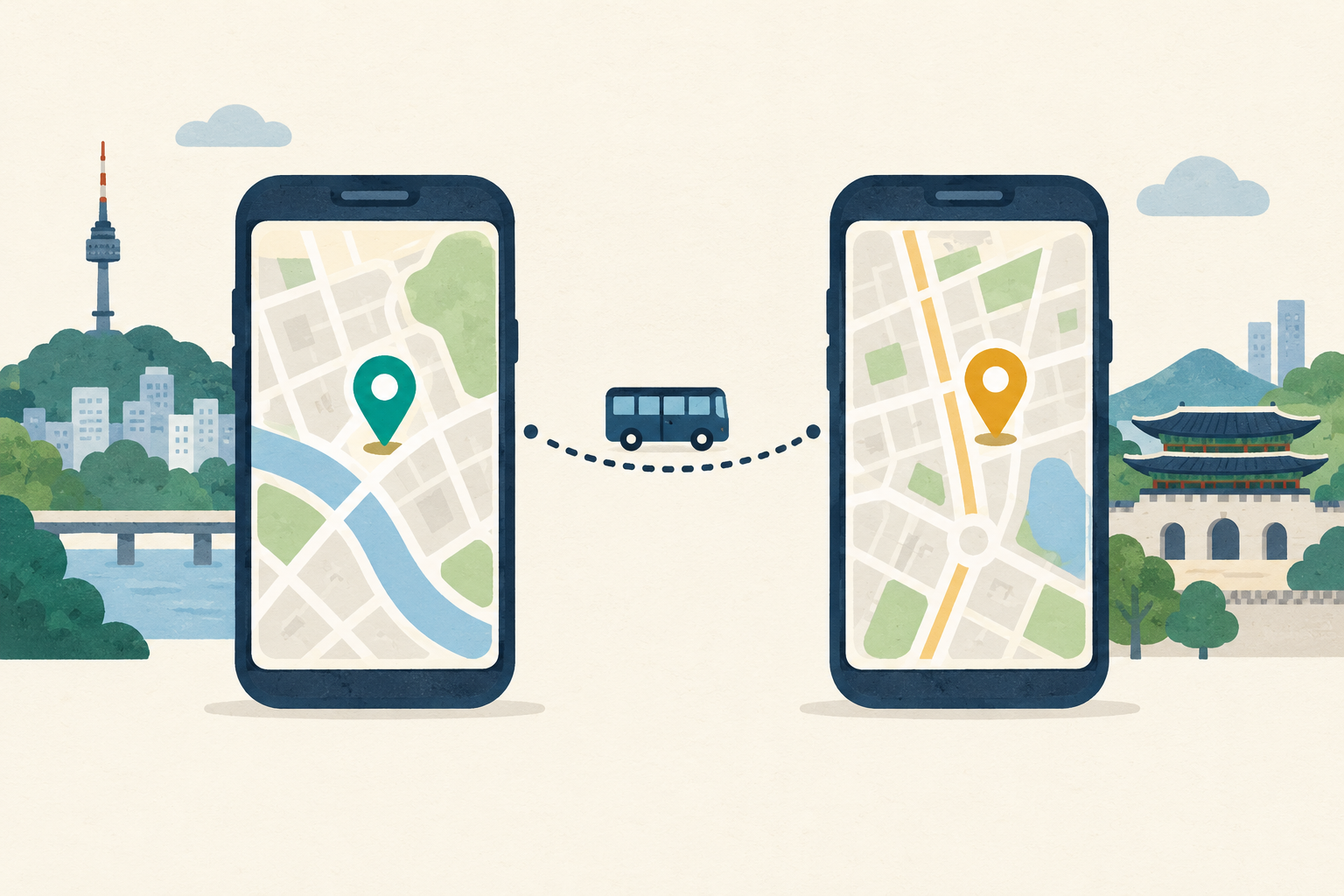
    Illustration of two generic smartphones showing simple city maps, one with a teal pin and one with an amber pin, joined by a bus route line
    Two maps, one trip: we ran the same English searches and the same bus route on both desktop sites (illustration).

    If you read only English, start with NAVER Map and keep KakaoMap as a second opinion. On October 1, 2026, we typed the same ten English place names into both desktop sites under the same conditions. NAVER put the place we meant first 9 times; KakaoMap did 4 times, and on 4 searches it put something else first, such as restaurants for “Gyeongbokgung”. For the same bus trip, both maps suggested the same first bus, but only NAVER showed route and stop names in English.

    Last checked: October 1, 2026. We tested the desktop websites, map.naver.com and map.kakao.com. We did not test the phone apps; for those we report what NAVER and Kakao say.

    In this guide

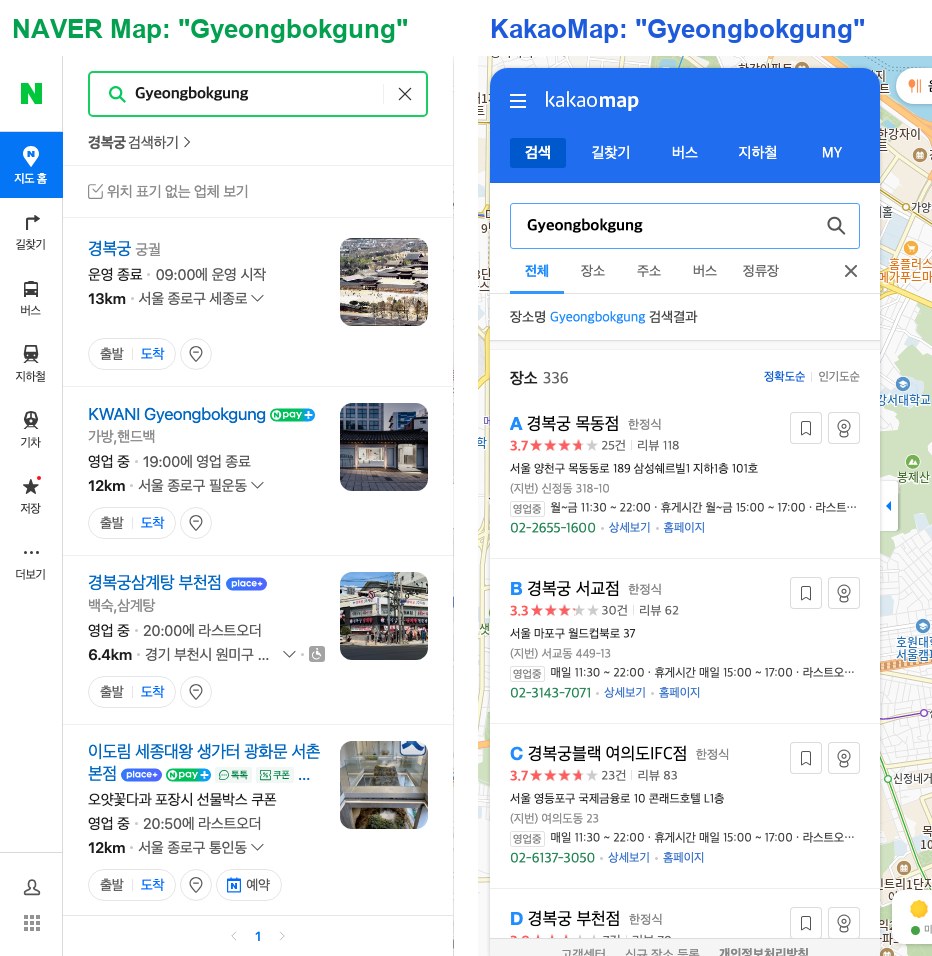
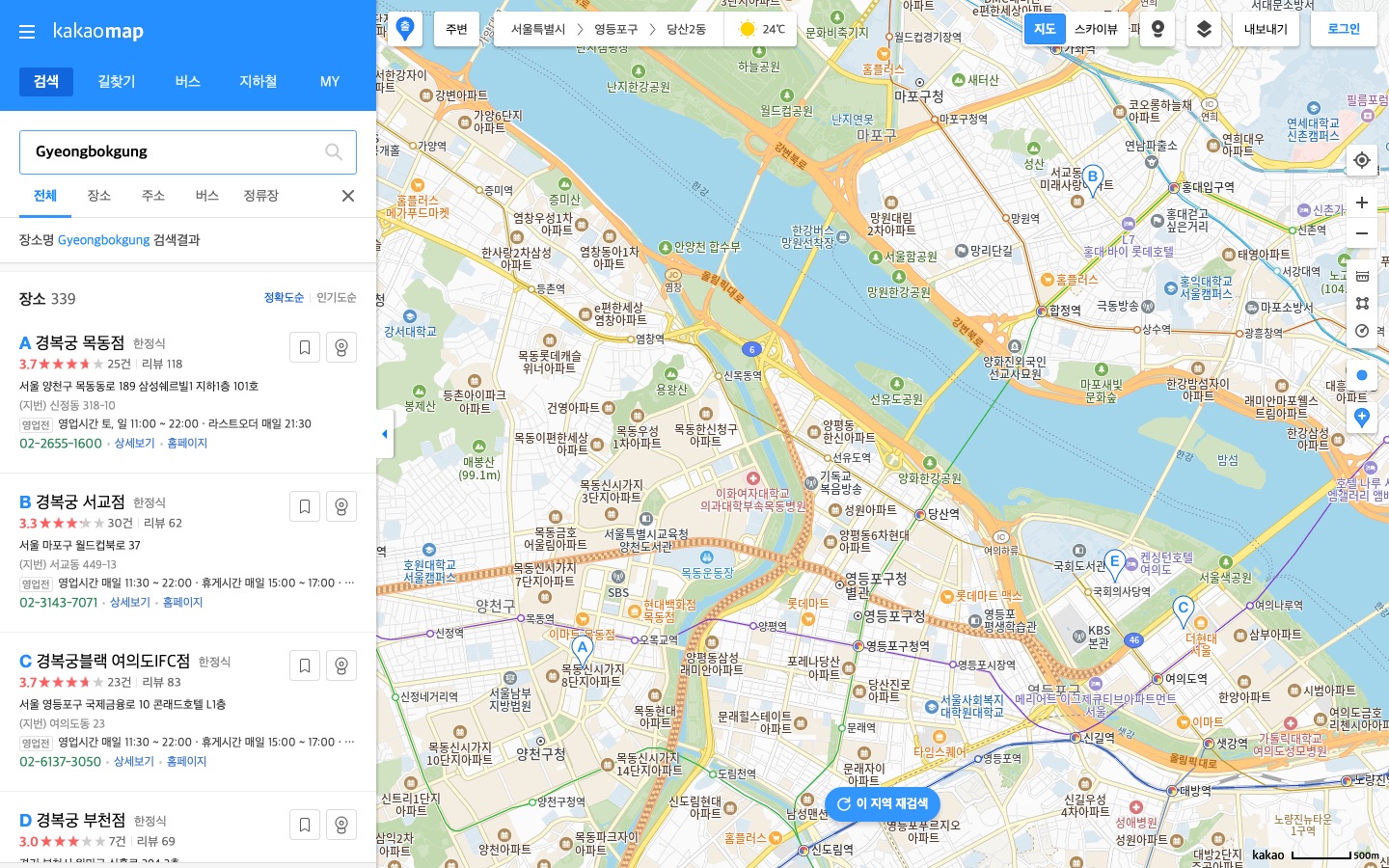
    Side-by-side desktop search for Gyeongbokgung: NAVER Map lists the palace 경복궁 first, KakaoMap lists restaurants named 경복궁 first
    The same search, “Gyeongbokgung”, on October 1, 2026: NAVER Map (left) put the palace first; KakaoMap (right) put restaurants named 경복궁 first.

    The short answer

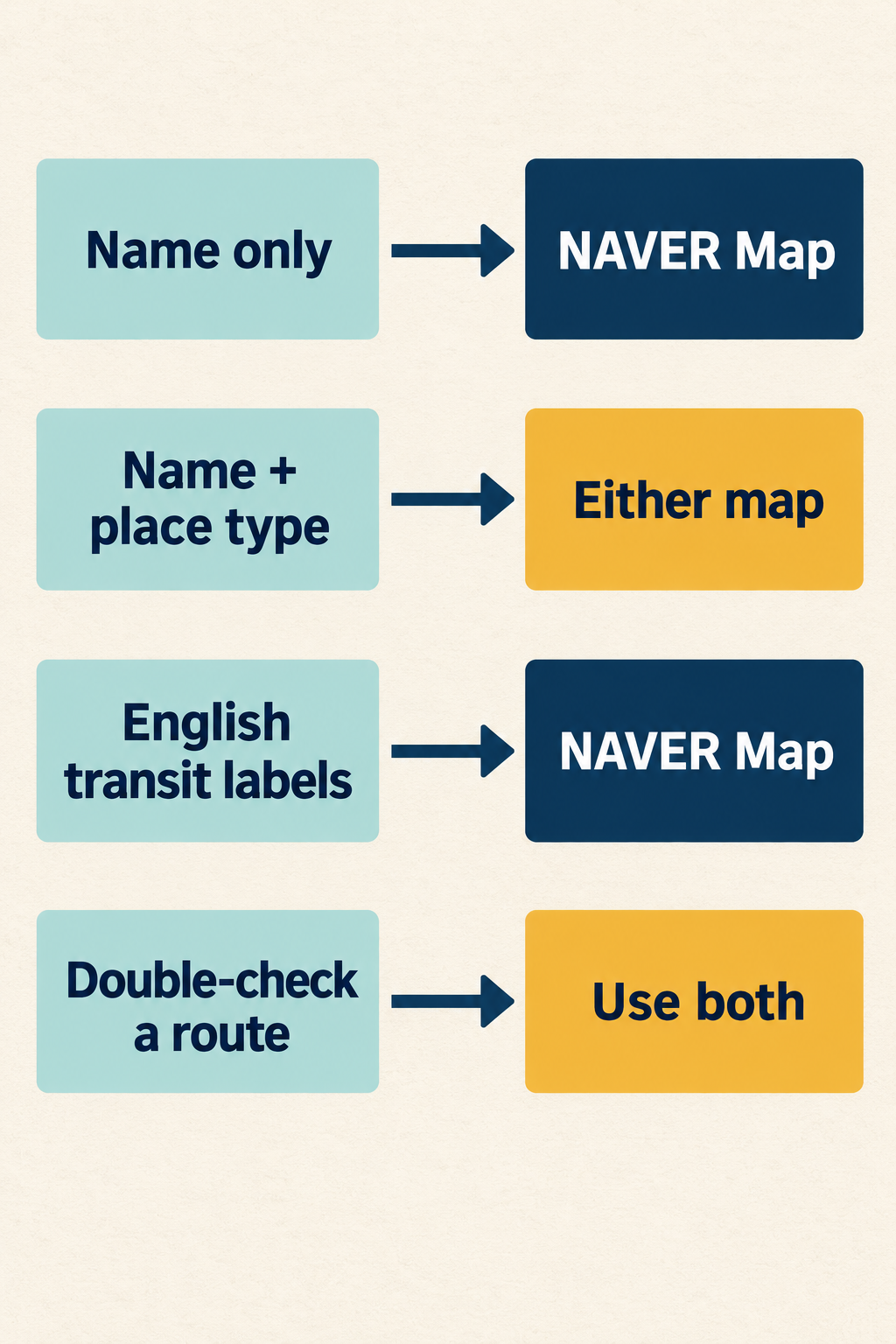
    If you want to…Our pickWhy (what we saw on October 1, 2026)
    Type a name on its own, without the kind of place (“Gyeongbokgung”, “Lotte World”)NAVER MapNAVER found the palace and the theme park first; KakaoMap put restaurants and a supermarket first
    Type a name with the kind of place in it (“Gyeongbokgung Palace”, “Gwangjang Market”)EitherBoth put the place we meant first
    Read transit routes in English on a computerNAVER MapRoute labels and many stop names were English; on KakaoMap every label was Korean
    Find Hongik Univ. Station from “Hongdae”KakaoMapKakaoMap put the station first; NAVER put the university first
    Switch the phone app to EnglishNAVER MapNAVER’s help page gives the steps; for KakaoMap, the pages we cite give only store listings and a 2018 reply
    Double-check a routeBothThe first suggested bus was the same on both

    This table is our recommendation based on one day of tests, not a ranking from NAVER or Kakao.

    Chart: Name only goes to NAVER Map; Name plus place type goes to Either map; English transit labels go to NAVER Map; Double-check a route goes to Use both
    Our picks from the October 1, 2026 test, in one chart. It is our recommendation, not a ranking from NAVER or Kakao.

    How we compared

    We used the same browser setup for both sites: a fresh Chromium browser window for every search, not signed in, browser language set to US English, time zone set to Seoul, and a 1440×900 window, from an internet connection in Seoul. We typed each English name into the site’s search box and pressed Enter, then read the first entries in the list. All runs took place between 5:36 and 5:44 p.m. Korea time on Thursday, October 1, 2026.

    Earlier, we wrote up each desktop site on its own: NAVER Map in English on desktop (tested September 26) and KakaoMap in English on desktop (tested September 27). This time we ran them side by side.

    Search: what came up first

    You typeNAVER Map, first entryKakaoMap, first entry
    Gyeongbokgung Palace경복궁 (palace) ✓경복궁 (palace) ✓
    Gyeongbokgung경복궁 (palace) ✓경복궁 목동점, a Korean set-meal restaurant ✗
    Seoul Station서울역 (KTX station) ✓서울역 (KTX station) ✓
    Seoul Station KTX서울역 (KTX station) ✓A parking lot in the station building ✗
    Hongdae홍익대학교 (Hongik University)홍대입구역 (Hongik Univ. Station, Line 2)
    MyeongdongSeoul Jung-gu Myeong-dong (area) ✓남산케이블카 (Namsan cable car) ✗; Myeongdong street second
    N Seoul TowerN서울타워 (observation deck) ✓YTN서울타워; N서울타워 second
    Incheon Airport인천국제공항 제1여객터미널 (Terminal 1) ✓인천국제공항 (airport) ✓
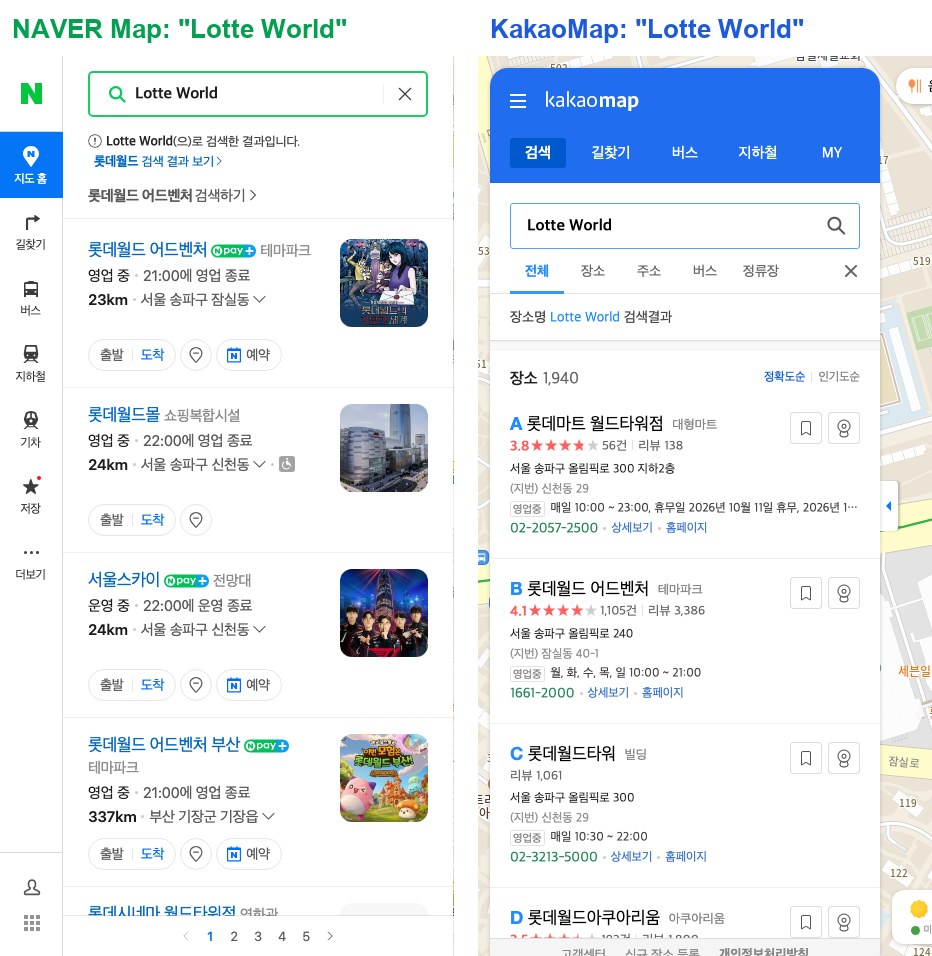
    Lotte World롯데월드 어드벤처 (theme park) ✓롯데마트 월드타워점, a supermarket ✗; the theme park second
    Gwangjang Market광장시장 (market) ✓광장시장 (market) ✓

    ✓ = the place we meant came first (our judgment); ✗ = something else came first. We left three results unmarked: both “Hongdae” results, because the two maps put different places first (the university and the station), and KakaoMap’s “N Seoul Tower” result, because we did not confirm whether YTN서울타워 and N서울타워 are listed for the same landmark.

    What the table shows:

    • Four searches worked on both. “Gyeongbokgung Palace”, “Seoul Station”, “Incheon Airport” and “Gwangjang Market” put the place we meant first on both sites.
    • KakaoMap put something else first four times. “Gyeongbokgung” alone gave KakaoMap’s first three spots to restaurants named 경복궁 in other parts of Seoul (Mokdong, Seogyo, Yeouido); “Seoul Station KTX” put a parking lot first; “Myeongdong” and “Lotte World” put the place we meant second. On NAVER, “Gyeongbokgung” showed a “search 경복궁” line at the top and the palace first.
    • Results change between days. On September 26, “Seoul Station” on NAVER showed businesses with “station” in their names instead of the station. On October 1 it put the station first, in three separate windows. Treat any single test, including ours, as a snapshot.
    • Results come back mostly in Korean. On both sites, place names, categories and addresses in the entries we read were mostly Korean, even for English searches; some business names included Latin letters. NAVER’s Myeongdong area list came back in English.
    Side-by-side desktop search for Lotte World: NAVER Map lists the theme park first, KakaoMap lists a Lotte Mart supermarket first
    “Lotte World” on October 1, 2026: NAVER Map (left) put the theme park first; KakaoMap (right) put a supermarket first and the theme park second.

    Directions: the same trip on both maps

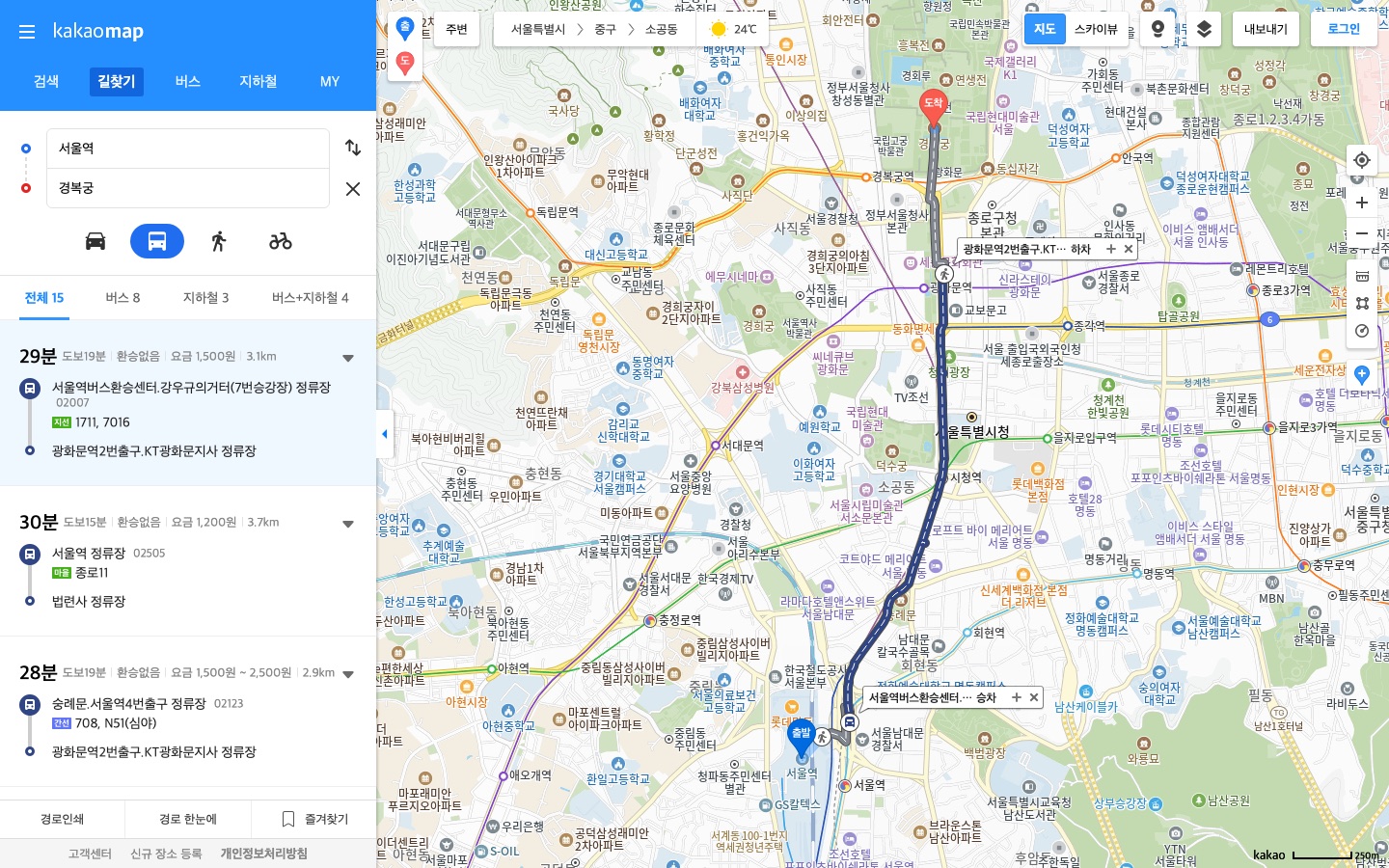
    We asked both sites for public-transit directions from Seoul Station to Gyeongbokgung, typing the names in English, at 5:42 p.m. on a Thursday.

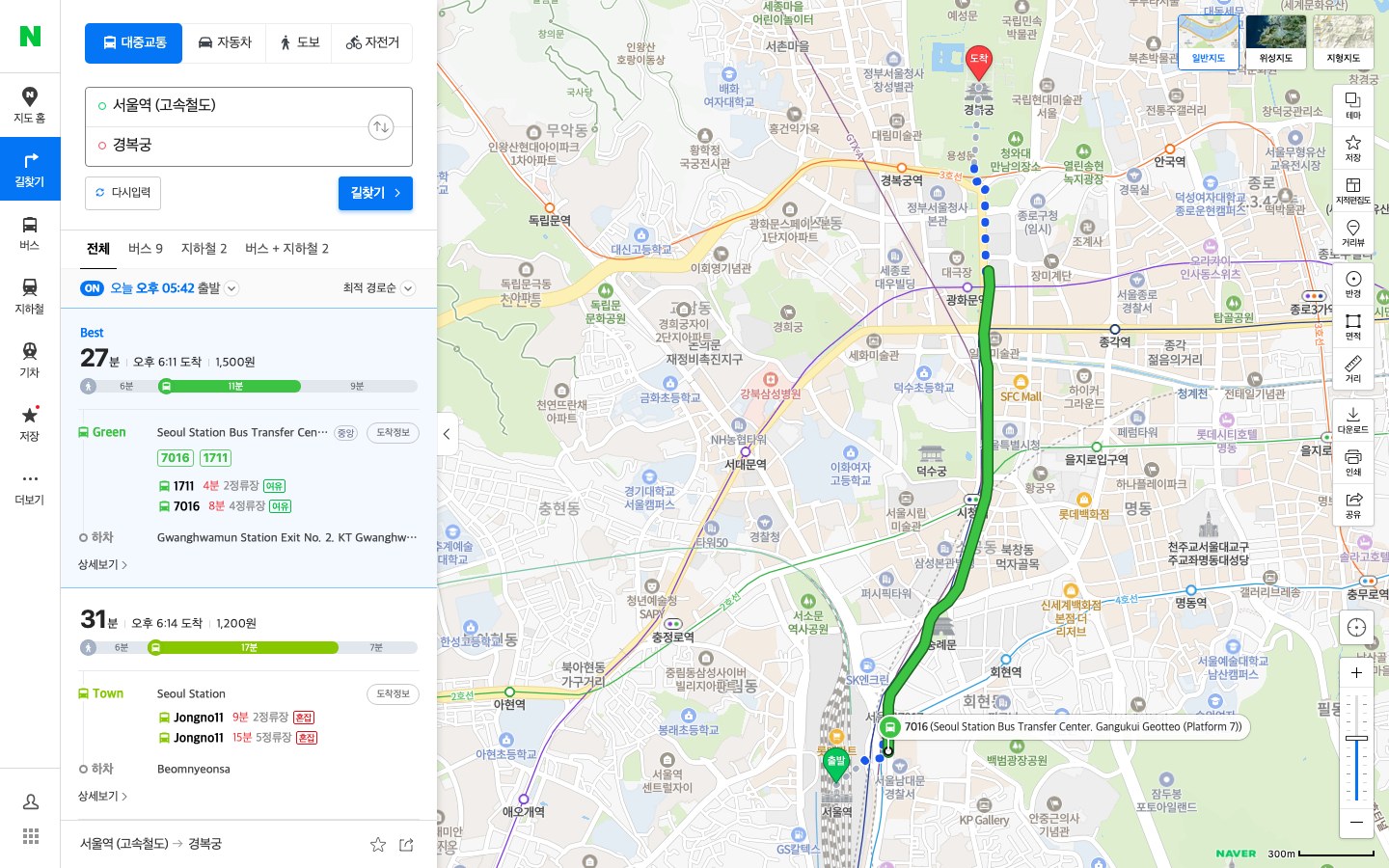
    NAVER Map. The suggestions filled the boxes with Korean names, 서울역 (고속철도) and 경복궁. The results showed many labels in English: “Best”, “Fastest · Short transfer”, “Seoul Station Bus Transfer Center. Gangukui Geotteo (Platform 7)”, “Gwanghwamun Station Exit No. 2. KT Gwanghwamun Branch”, and line names such as “Line1”. Tabs, times, fares and buttons stayed Korean (for example 오후 6:11 도착, “arrive 6:11 p.m.”), and some stop names stayed Korean. The first route: 27 minutes, bus 1711 or 7016, ₩1,500.

    NAVER Map desktop transit results from Seoul Station to Gyeongbokgung, with route labels such as Best and stop names in English and tabs in Korean
    NAVER Map’s transit results for Seoul Station to Gyeongbokgung: route labels and many stop names in English, tabs and times in Korean (5:42 p.m. KST, October 1, 2026).

    KakaoMap. We typed “Seoul Station” and “Gyeongbokgung Palace”; the suggestion lists were in English (“Seoul Station”, “Seoul Station KTX”, “Gyeongbokgung Palace”), and picking them filled the boxes with 서울역 and 경복궁. It listed 15 routes, all in Korean. The first: 28 minutes (28분), 19 minutes of walking (도보19분), no transfer (환승없음), ₩1,500, bus 1711 or 7016 from the Seoul Station bus transfer center to Gwanghwamun Station Exit 2.

    So both maps suggested the same bus first. NAVER’s version was easier to read in English. These are displayed estimates for one departure, not timed trips.

    English in the phone apps: what each company says

    We did not test either phone app. Here is what the companies publish:

    NAVER Map. NAVER’s help page lists four app languages: Korean, English, Simplified Chinese and Japanese. Language settings need app version 5.1.3 or later. On Android, the path is MY icon (profile icon, top right) > settings gear icon > Language. On iPhone, use the same path, or your phone’s Settings > NAVER Map > Preferred Language. NAVER also notes that its Place Agent replies only in Korean. NAVER’s Google Play listing says “Korean/English/Japanese/Chinese maps and English navigation provided.” Our NAVER Map guide for foreigners has a section called “Set NAVER Map to English”.

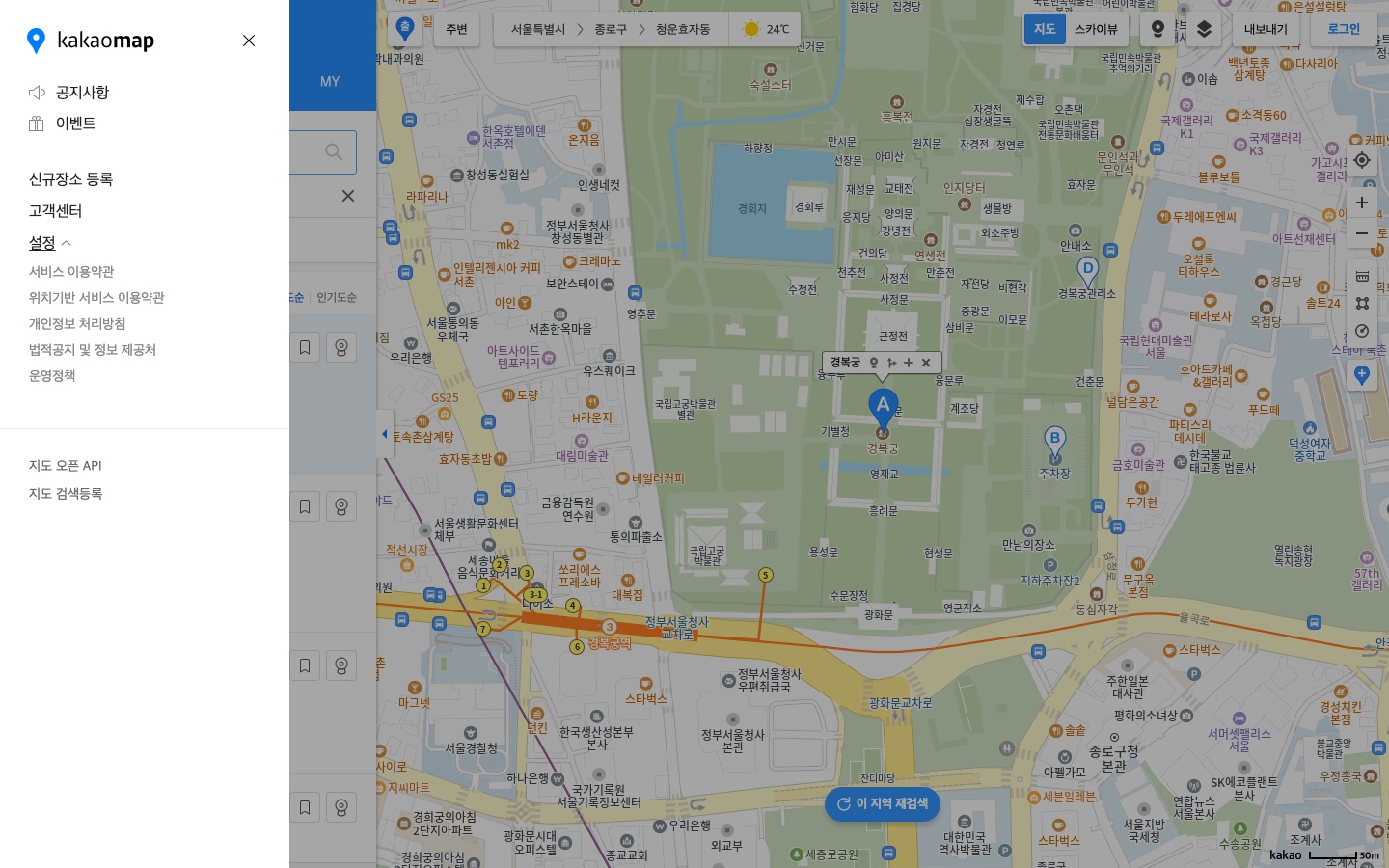
    KakaoMap. The US App Store lists the KakaoMap app’s languages as English and Korean, and Kakao’s Google Play listing has an English description. The Kakao pages we cite here do not give current steps for switching to English. A Kakao reply to a user on Google Play, dated 2018, points to Settings → App settings (설정 → 앱 설정) for the language; it is old, so treat it as a pointer, not current steps.

    Which one should you download?

    Our suggestion: install NAVER Map as your main map and KakaoMap as a backup. NAVER’s help page documents an English setting, and in our desktop tests it put the place we meant first more often and showed English route labels. KakaoMap is a useful second check: in our route test it suggested the same bus first, and for “Hongdae” it went straight to the subway station.

    Two habits help on either map:

    • Add the kind of place. “Gyeongbokgung Palace” put the palace first on both; “Gyeongbokgung” alone put restaurants first on KakaoMap in our test.
    • Check the category under the name. If you searched for a palace and the first entry says 한정식 (Korean set-meal restaurant) or 대형마트 (supermarket), scroll down.

    Korean words you’ll see on both maps

    KoreanMeaning
    길찾기Directions
    대중교통Public transit
    도보Walking
    분Minutes
    도착Arrive
    출발Depart
    환승없음No transfer
    하차Get off
    요금 / 원Fare / won (₩)
    궁궐, 고궁Palace (category)
    한정식Korean set-meal restaurant (category)
    대형마트Supermarket (category)
    테마파크Theme park (category)
    전망대Observation deck (category)
    시장Market (category)
    역Station

    Translations are ours, not NAVER’s or Kakao’s.

    What we checked and what we didn’t

    Checked: the desktop websites map.naver.com and map.kakao.com on October 1, 2026, with ten typed English searches on each (a fresh window per search) and one public-transit route on each. We read the first entries of each search list; on KakaoMap that was the first three entries.

    Not checked: the NAVER Map and KakaoMap phone apps; being signed in; connections from outside Korea; driving and walking directions; browser translation tools; and this side-by-side comparison on other days or at other times (our earlier single-site tests were on September 26 and 27). Search results changed between our September 26 and October 1 tests, so yours may differ.

    FAQ

    Is NAVER Map or KakaoMap better for foreigners?

    For English readers, we’d start with NAVER Map. In our ten side-by-side desktop searches on October 1, 2026, NAVER put the place we meant first 9 times and KakaoMap 4 times, and NAVER showed transit route labels in English. That is one day’s test, not a ranking. Both put the place first for “Gyeongbokgung Palace”, “Seoul Station”, “Incheon Airport” and “Gwangjang Market”.

    Can I use KakaoMap in English?

    The US App Store lists the KakaoMap app in English and Korean; we did not test the app. On the desktop site we found no language setting in our September 27 test, and its labels were Korean, though English search words worked.

    Do both maps show the same bus routes?

    For our test trip, Seoul Station to Gyeongbokgung, both suggested bus 1711 or 7016 first, at ₩1,500. That is one trip at one time.

    Why does KakaoMap show restaurants for “Gyeongbokgung”?

    In our test, restaurants named 경복궁 filled KakaoMap’s first three spots for “Gyeongbokgung”. Typing “Gyeongbokgung Palace” put the palace first.

    Sources

    All official pages checked October 1, 2026.

  • KakaoTalk Verification Not Working? What to Check Before You Retry

    Editorial illustration of a phone with an empty code box, a delayed envelope with a clock and a SIM card, with Seoul landmarks in the background.
    AI-generated explanatory illustration, created with web ChatGPT. Not a KakaoTalk screen or a record of a verification test.

    If KakaoTalk verification is not working, the fix depends on which message you see. A code that never arrives, a verification text that fails to send and a sign-up that is “blocked” are different problems. Kakao warns that repeated attempts can restrict you, so find your message below before you tap the button again.

    The short route: check the number format → make sure your phone line can send and receive texts → fix the network → wait, then contact Kakao with the details.

    Sources checked: September 30, 2026. This guide is based on Kakao’s published English help pages. It is not a hands-on test of KakaoTalk verification.

    In this guide

    Find your problem

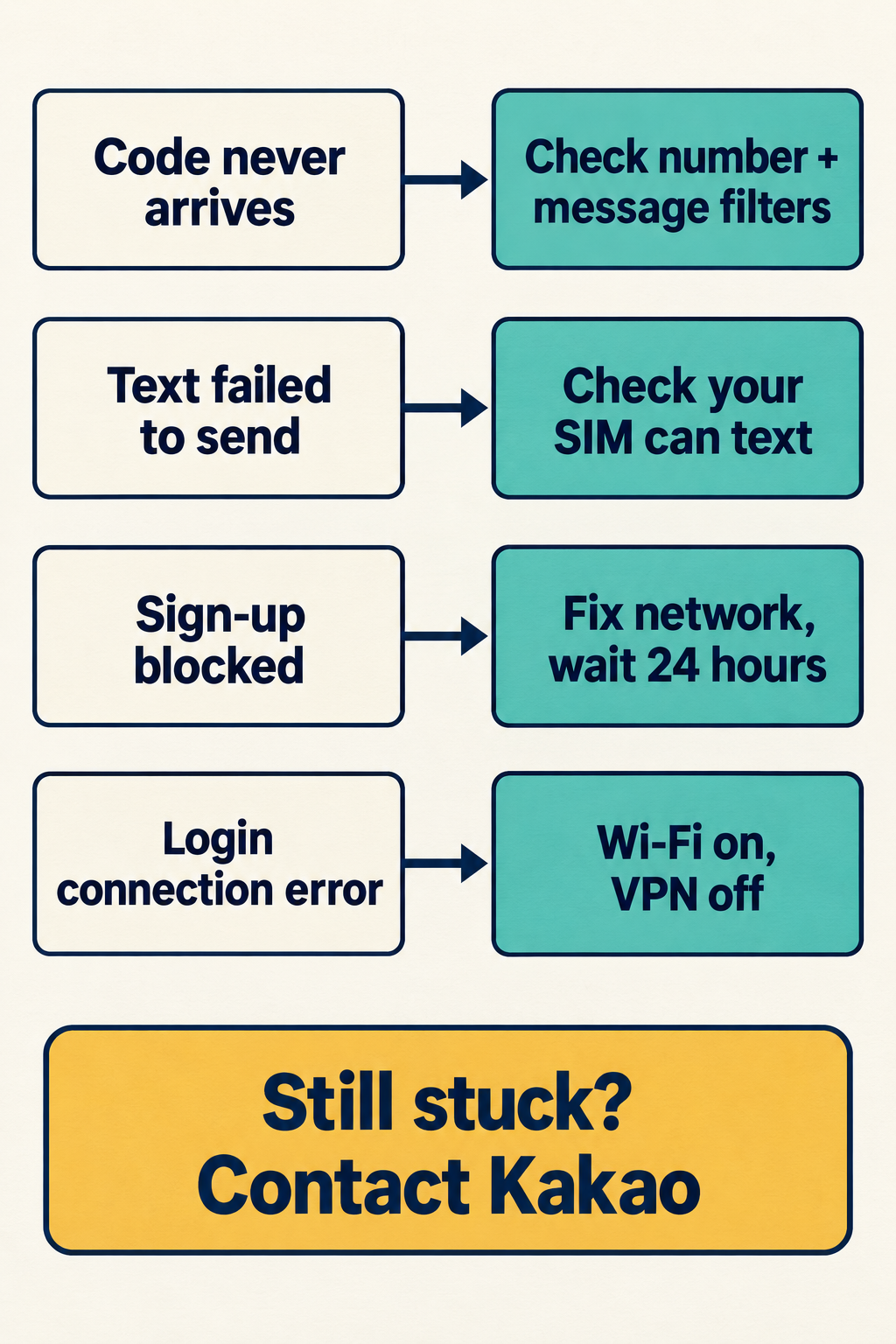
    Chart: Code never arrives, check number and message filters. Text failed to send, check your SIM can text. Sign-up blocked, fix network and wait 24 hours. Login connection error, Wi-Fi on and VPN off. Still stuck? Contact Kakao.
    AI-generated explanatory chart, created with web ChatGPT; not an official Kakao workflow. “Sign-up blocked” means the Kakao Account registration message described below.
    What you seeMost likely checkWhen to stop retrying
    The verification code never arrivesNumber entered without the country code, message filters, carrier delayKakao says to contact it if the code has not arrived within 24 hours.
    “Failed to send the verification text”Whether your phone line is allowed to send messages, including from abroadAfter a couple of failures, check with your carrier before trying again.
    Kakao Account registration blocked after an “abnormal attempt”Slow network, blocked cookies, ad-blocking or security programsKakao asks you to try again 24 hours after the message.
    Login asks you to “check the connection information”Your IP address changing during login: mobile data, VPN, iCloud Private RelaySwitch to Wi-Fi with VPN and Private Relay off, then try once more.
    Login asks for your previous phone numberThe number previously linked with KakaoTalkCheck it on your old phone; with dual SIM, try your other number.

    These are our suggested next steps based on Kakao’s help pages. They are not a diagnosis of your specific error message.

    First: check the number itself

    Start with the number field. Kakao says you should select the correct code for your country, then enter your phone number without the country code, and then continue through the SMS verification process. KakaoTalk is available in 230 officially registered international country codes, so pick yours from the list instead of typing “+1” or “+44” into the number box.

    Two more rules from Kakao’s help pages:

    • It must be your own mobile number. Kakao says, “You must enter your own mobile phone number.”
    • Virtual and internet numbers are not accepted. Kakao says, “In order to prevent spams, we do not allow virtual numbers, internet phone numbers, etc.”

    If the number you entered is an app-based or internet number, change to a regular mobile line before you retry. Retrying the same number is unlikely to change the result.

    If the code never arrives

    Kakao’s help page on missing SMS codes gives two reasons:

    1. The number is wrong. Recheck the digits and the country selection.
    2. Your carrier is slow. Kakao says, “Verification code delivery may be delayed in certain countries or regions, depending on your wireless carrier.”

    Kakao’s help page for Kakao Account 2-step verification adds two checks that are worth trying here too. It warns that if the 1644 area code or the word “Kakao” is blocked on your phone, incoming texts may be blocked, so check your spam or blocked-message settings before requesting another code. It also says that if a text has not come for a while, select “Re-send Code.” Wait a few minutes before you tap it, rather than tapping it repeatedly. Kakao does not publish how many retries are allowed.

    If nothing arrives within 24 hours, Kakao asks you to contact it through its website.

    If KakaoTalk says the verification text failed to send

    For this error, Kakao points to your phone line rather than the code. Its help page says to check with your mobile service provider to see if you are allowed to send messages, or if you can send messages overseas.

    That matters for travelers. Kakao also says it “provides the best verification method for each users”, so the steps on your screen may not match a friend’s screenshots.

    Using a travel eSIM? Some travel eSIMs are data-only. The eSIM seller Airalo, for example, says of data-only eSIMs: “If your eSIM supports data-only, you can still use another line for voice and SMS.” To do that, you need to enable the primary line and set it up as your Default Voice line. Airalo also warns this may incur roaming charges, so ask your home provider about costs first.

    In practice, keep your home SIM line switched on while you verify, and check that your plan allows texting while roaming. Other eSIM sellers may work differently, so check your plan’s details.

    Update, October 9, 2026: if you have not chosen an eSIM yet, see Korea eSIM for Foreigners for what SK Telecom, KT, LG U+ and four travel eSIM sellers say about Korean numbers and text-message verification.

    Do not keep pressing the button. Kakao says you may be restricted from using the service if repeated sign-up or verification attempts occur.

    If Kakao Account registration is blocked after an “abnormal attempt”

    Kakao explains this message in its help for Kakao Account sign-up (the account you log in to KakaoTalk with). Kakao says registration may be restricted if abnormal service usage, such as the registration of multiple accounts from the same environment, is detected. Its help page says the following cases may be considered abnormal attempts:

    • If the network speed is very slow
    • If cookies are blocked on the browser
    • If certain ad-blocking/security programs are installed

    Fix those, then follow Kakao’s two remaining steps. If the problem persists, please try to sign up using a different network environment and device. Kakao also says to try again after 24 hours have passed since you received this message.

    If it still fails, Kakao asks you to write down the screen where the issue occurred, along with the email address and phone number you used to attempt to register, and contact Kakao customer support.

    If you are logging in to an existing account in Korea

    Travelers who already use KakaoTalk can hit different checks when they log in on a new phone, a computer or a new network.

    “Check the connection information.” Kakao says that if the Internet Protocol (IP) network information changes during the login process, the login may fail. Its fix is to log in by connecting to Wi-Fi, turn off the VPN settings, and on an iOS device turn off the iCloud+ Private Relay. Kakao describes Wi-Fi as more likely to have a stable connection.

    Login restriction by country. Kakao says country-specific login restrictions are set automatically. When you log in from a country that is not registered as a login permitted country, you can log in after completing KakaoTalk verification or email verification. Make sure you can still open the email on your Kakao Account before you fly. Kakao lets you disable the setting under More > Settings > Kakao Account > Login Restriction by Country > Disable, but it is a security feature, so we suggest keeping it on and checking that email verification works instead. If you cannot use either verification method, Kakao says to contact its customer support.

    “Enter your previous phone number.” To log in to a new KakaoTalk, you must enter the previous phone number linked with KakaoTalk. You can check it on your current phone under More > Settings > Manage > Phone Number. If you use two numbers or dual SIM cards, Kakao notes that you may have completed the verification with a phone number different from the one you entered.

    2-step verification codes. If a 2-step verification message is not reaching you through KakaoTalk, Kakao says to verify that the account information logged into KakaoTalk matches the account information you are trying to log in with. Backup-email codes can end up in spam, so Kakao suggests searching your entire inbox for “Kakao” or “카카오”.

    Thinking of switching KakaoTalk to a Korean SIM?

    Treat it as a phone-number change, not a quick fix. Kakao says you may only use one Kakao Account per mobile number, and its number-change steps include deleting and reinstalling KakaoTalk and verifying the new number. If you want to keep your messages, back up your chat data before you verify the new number: More > Settings > Chats > Chat Backup.

    Kakao also says that if you attempt to connect your Kakao Account to a different phone number than originally registered, you will automatically be unregistered from the account. For a short trip, keeping your home number on KakaoTalk is usually simpler.

    Before you fly: a two-minute checklist

    • Know your Kakao Account email and password, and check that you can open that email abroad.
    • Write down the phone number your KakaoTalk is verified with (More > Settings > Manage > Phone Number).
    • If you will use a data-only eSIM, confirm that your home line can still receive texts while roaming.
    • Back up your chats if you might change phones or numbers.
    • Turn off your VPN before logging in on a new device.

    This checklist is our advice, drawn from the help pages above.

    When to contact Kakao

    Stop retrying and contact Kakao when a code has not arrived in 24 hours, when registration stays blocked after 24 hours, or when you cannot use the extra verification methods for a country login restriction. Kakao’s English question form has a category called “Verification Code Related”.

    Include the exact error wording, your country and carrier, the phone number and email you used, and when the problem started. That list is our suggestion; the form itself decides which fields are required. We have not submitted an inquiry and cannot tell you how long a reply takes.

    Setting up other Korean apps for your trip? See NAVER passport verification not working for NAVER’s identity check, and KakaoMap in English on desktop for planning routes on a computer.

  • NAVER Passport Verification Not Working? What to Check Next

    Editorial illustration of a plain travel-document booklet, a phone with a camera symbol and a magnifying glass.
    AI-generated explanatory illustration, created with web ChatGPT. Not a real passport, NAVER screen or record of a verification test.

    If NAVER passport verification is not working, start with the step where it stops. A camera that will not open needs a different check from a passport already used on another account. Before you take another photo, check the passport’s eligibility and whether your account details match it.

    The short route: check the account and passport → fix the photo conditions → follow the face-check instructions → contact NAVER if the problem remains. If a reservation is time-sensitive, ask the venue about another booking route while you seek help.

    Sources checked: September 29, 2026. This is a guide to NAVER’s published instructions, not a hands-on test of passport verification.

    In this guide

    Find your next step

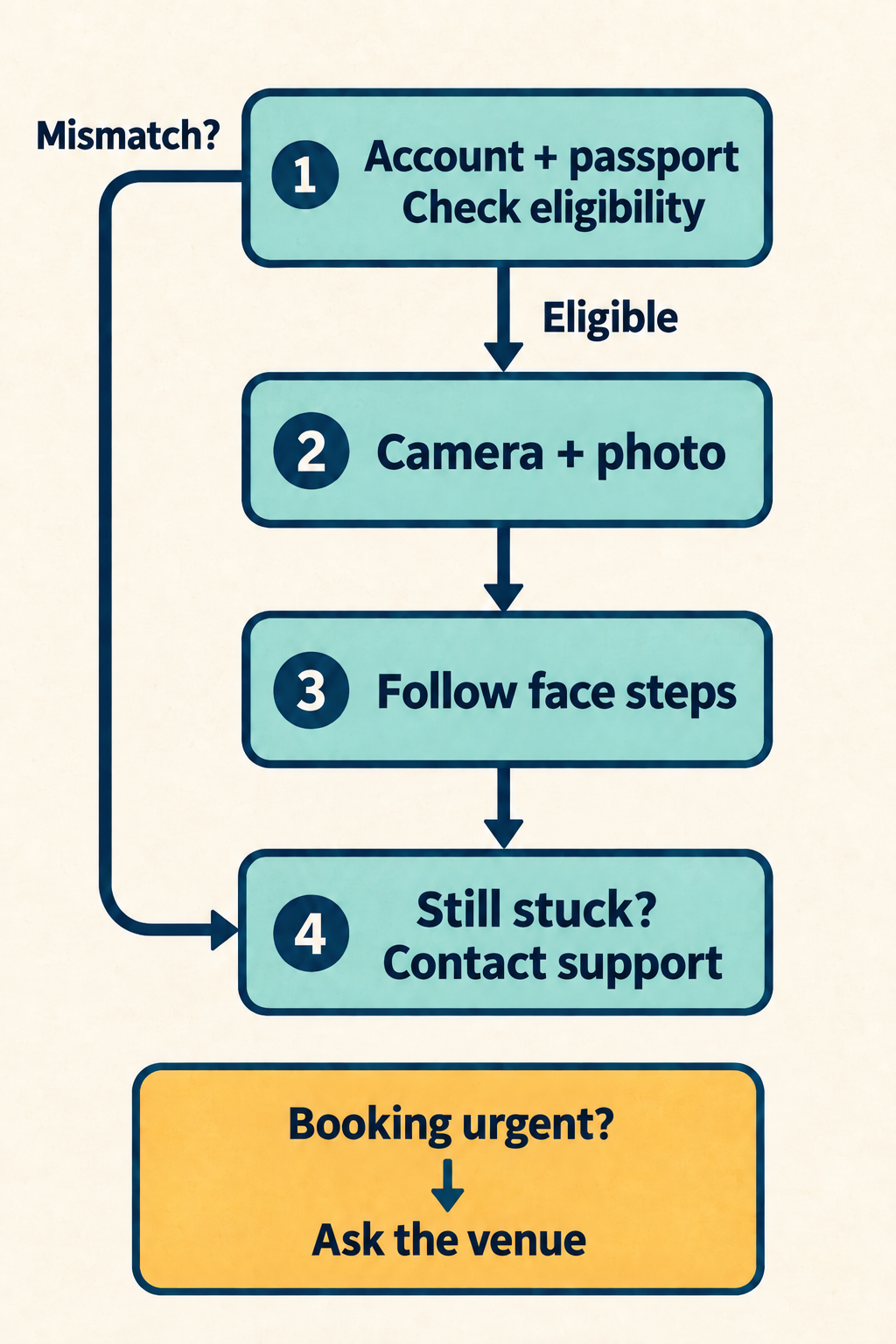
    Troubleshooting flow: check account and passport eligibility; if eligible, check camera and photo, then follow face instructions; contact support if still stuck. A mismatch bypass leads directly to support. Urgent bookings have a separate ask-the-venue option.
    AI-generated explanatory diagram, created with web ChatGPT; not an official NAVER workflow or app screenshot. Use the step matching your problem. Unresolved errors at any stage can go to support; you do not need to complete every box first.

    Diagram in words: “Account + passport / Check eligibility” comes first. “Eligible” leads to “Camera + photo”, then “Follow face steps”. “Still stuck? / Contact support” is the help route. “Mismatch?” skips the photo steps and goes to support. “Booking urgent? / Ask the venue” is a parallel booking alternative, not a verification result.

    Where you are stuckWhat to do nextWhen to move on
    The camera will not openCheck camera permission for the app you are using in your device settings.If permission is allowed but the camera still will not open, contact NAVER; this guide has no tested device-specific fix.
    The passport photo failsUse the original passport on a flat surface in good light without reflections.If it still fails after correcting those conditions, check eligibility and account details, then contact NAVER.
    The face check failsFace the camera, fit your whole face inside the frame and follow the on-screen movement instructions.If the check still fails, record the error wording and ask NAVER for help.
    The passport was used for another ID, is expired, or the account details do not matchStop retaking photos; compare your situation with the eligibility rules below.Ask NAVER about the account or document issue rather than treating it as a camera problem.
    Verification appears complete but a booking is blockedRead the booking or payment message and check the specific venue’s options.Ask the venue about another way to book; successful verification is not a booking confirmation.

    These are our suggested next steps, based on NAVER’s instructions. They are not a diagnosis of your error message.

    Check the passport and account before retaking photos

    NAVER’s foreign passport verification help lists these eligibility conditions:

    • The passport was issued by a country other than the Republic of Korea.
    • It has not expired.
    • It has not been used to verify another ID.
    • The name and date of birth on the passport match the information submitted when signing up for the NAVER account.

    Compare those details with the account you intend to use. If something does not match, use the help route below to ask how to correct it. The help page does not explain how it handles middle names, name order, spaces or a changed passport, so do not guess at a formatting workaround.

    An expired passport does not meet NAVER’s conditions. Do not keep photographing it; arrange renewal with its issuing authority. If the old passport was linked to an ID, ask NAVER how to proceed with the replacement, since this page does not explain that case.

    If you know the passport was used for a different ID, tell support that. NAVER does not describe a passport-transfer or unlinking procedure on this page. Creating another account is not a documented solution to that restriction.

    Missing the verification option altogether? NAVER describes this service for foreign users who have difficulty with Korean mobile phone number verification when using reservation or ordering services. The same help page does not give the exact button path to start verification. Ask NAVER where to begin for the service you want, and include whether you are trying to make a reservation or place an order. Do not assume that changing the map language will make the option appear.

    For general account and English-language setup, use our NAVER Map for Foreigners guide. This article focuses on what to check when verification stalls.

    Update, October 5, 2026: If you do not have a NAVER account yet, see our guide to NAVER sign-up for foreigners. In our test of NAVER’s English sign-up page, the form asked for your name, date of birth, gender and a phone number for an SMS code, and the name step warned that you can’t verify your legal name if the name does not match your ID.

    If the passport camera or photo fails

    NAVER says to have your original passport ready and take a photo directly with the device’s camera during verification. A saved scan is not the method described in its instructions.

    1. Check camera access. NAVER directs users to Device Settings > App Permissions to allow camera access. Treat that as general guidance, not an exact menu path for every phone.
    2. Put the passport flat. Use a flat surface where light does not reflect from the page.
    3. Improve the light. NAVER specifically warns that insufficient lighting can cause verification to fail. Move to a well-lit spot while keeping reflections off the passport.
    4. Make an adjustment before retrying. If the camera still will not open, or the photo still fails, note which stage stopped and move to support.

    The first three steps come from NAVER’s help page; the stop-and-escalate step is our advice. We have no verified retry limit or waiting period to recommend.

    If the face check fails

    NAVER says the face check follows the passport photo and compares your face with the passport photo.

    Look directly at the camera with your entire face inside the frame. Follow the on-screen instructions and move naturally, as NAVER directs. We cannot supply a fixed sequence of head movements because the help page does not list one.

    If it still fails, record the wording of the error and whether the failure came before or after the face check. Do not treat another person’s successful attempt as proof that the same device or account change will solve yours.

    If you need NAVER’s help

    The passport help page says to contact the Customer Center if verification is difficult. Its linked form is labeled “How to change nickname ID to a real name for foreigners or Koreans Living abroad”.

    That label is broader than passport troubleshooting. Start from the official passport help page and its support link, and explain that your question concerns foreign passport verification.

    Ask for troubleshooting, not an account conversion you do not intend. If you want the Things to do promotion, mention that before requesting any change: its help page excludes real-name-verified IDs, but does not explain whether passport verification counts toward that rule.

    Prepare:

    • The stage that fails: finding the option, camera, passport photo or face check.
    • The exact error wording, if any.
    • Your phone model, operating system and app version.
    • The service you were trying to use, such as a venue reservation.
    • Whether the account name and date of birth match, and whether the passport was previously used for another ID.

    This is our suggested information list, not a list of required form fields. We opened the public support page but did not submit an inquiry or verify a response time.

    For an initial description, you could write:

    I am trying to use foreign passport verification for a reservation. The process stops at the passport photo stage. The camera opens, but verification fails after the photo. What should I check next?

    Adapt the example to your actual problem. You do not need to include your passport number in that initial description. Keep document images out of public comments; if the official process requests documents, read its requirements before deciding what to submit.

    If a reservation cannot wait

    In its June 2026 announcement, NAVER says passport verification lets foreign visitors access supported bookings, orders and payments without a Korean mobile phone number. It also says support will expand in phases. Do not read this as a promise that every venue or checkout will work.

    If verification appears complete but you cannot finish a booking:

    1. Read the new message and note whether it concerns identity, availability or payment. Do not restart identity verification merely because a later step failed.
    2. Check the venue’s own website or contact details for another reservation method. Ask whether it accepts direct reservations for your intended date and party size.
    3. If the venue cannot offer a workable method, choose an alternative rather than assuming you have secured a place.

    Our suggested question: “I cannot complete the NAVER reservation. Can I book directly for my preferred date and party size? Please let me know the confirmation and payment requirements.”

    These are planning options, not a guarantee that the venue takes direct bookings.

    A separate payment rule: NAVER’s booking help says foreign members may be required to pay via Npay, with a monthly payment limit of ₩5,000,000. That does not tell us which foreign cards your particular checkout will accept.

    A separate promotion rule: the Things to do help page says its foreign-tourist promotion is unavailable to IDs that have completed real-name verification. The page does not explain how that rule interacts with the newer passport verification flow. If that promotion is your goal, ask NAVER before changing your account’s verification status.

    For a problem with that promotion’s bookings, use Contact Us at the bottom of the Things to do help page rather than treating it as a passport-photo problem. That contact route belongs to the Things to do guidance; it is not presented here as support for every NAVER booking.

    What we checked, and what remains untested

    We read NAVER’s English passport instructions, its linked public support page, the June 2026 announcement, and the booking-payment and Things to do help pages on September 29, 2026.

    We have not tested passport capture, face matching, account changes, support submission, booking or payment. We also have not confirmed the current app entry button, verification from abroad, approval times, retry limits or how long verification stays valid.

    The practical aim is to help you choose the next step, not to promise approval. Correct what NAVER explicitly describes, ask support about unresolved account or document issues, and keep a separate booking plan if timing matters.

  • NAVER Map No ETA: Check Your Bus and Find Another Route

    Standing at a bus stop while NAVER Map says No ETA? Start by checking that you are at the right stop, then look for the bus’s current position. If you still cannot tell whether it is coming, compare another route now rather than refreshing the same screen indefinitely.

    Here is the order to follow: match the stop and direction → check the bus details → compare another arrival source → decide whether to wait, take another route or get help.

    Sources checked: September 28, 2026. The steps below combine official guidance with our travel advice; we have not tested this situation in the English phone app.

    1. Check that you are waiting at the right stop

    In NAVER Map, search for the number printed on the bus-stop sign. NAVER’s mobile bus-information guide says you can search by stop number or bus number and open the matching result.

    Compare the stop number, bus number and direction with the route you intend to take. Use the Korean destination name on your saved route if you need to ask someone.

    If they do not match: find the correct boarding stop in your route and follow the walking directions to it. Do not simply move to a nearby stop with a similar name.

    If they match: keep the stop details open and check the bus itself.

    2. Look for a bus position, not just the missing countdown

    Search for your bus number and open its route details. NAVER says the route information can show current bus positions, while the stop information can show live information for individual buses.

    Look for your boarding stop and the bus’s direction along the route. If a bus position is shown, check whether it is before your stop in the direction you need, rather than merely nearby on the map.

    Return to your public-transit route’s bus section too. NAVER’s guide identifies the Korean button 도착정보 더보기 as the place to view more arrival information for buses on that part of the journey.

    If a position or estimate appears: use it to assess whether waiting fits your plans, and keep an eye on the road as well as the screen.

    If neither appears: go to the next step. A missing marker is not enough to conclude that no bus is running.

    3. Compare the same stop with another arrival source

    If the stop has an electronic arrival board, check your bus number there. Make sure the board is for your boarding stop and direction.

    For buses operating in Gyeonggi-do, try the official Gyeonggi Bus Information website. Its search accepts route numbers, stop names and stop numbers; the page is in Korean, so using the stop number is a useful starting point.

    Enter that number, choose the matching stop and look for your bus. Check the direction before comparing an arrival estimate with NAVER Map.

    If another source shows an arrival: treat it as an estimate, not a guarantee. Gyeonggi Bus Information warns that its predictions can change with traffic, route changes and vehicle dispatch.

    If both sources have no information, or you cannot read the result: use the English help option below or start comparing an alternative journey. The Gyeonggi website is not a nationwide bus service; outside its coverage, use the stop’s posted information or ask for help.

    4. Decide whether to wait or change your route

    Do not choose a fixed waiting time just because the message says No ETA. Decide from the information you can actually confirm and how much room you have in your schedule.

    What you findWhat to do next
    An approaching bus or arrival estimate for the correct stop and directionIf the wait fits your plans, stay at the boarding stop and watch for the bus. Recheck if it does not arrive as expected.
    No position or estimate, but you have timeCheck posted service information or ask about the next departure before deciding to keep waiting.
    No usable arrival information and you risk missing a booking or connectionCompare another route now; do not spend your remaining time repeatedly refreshing.
    The operator or staff confirms that your service has finishedStop waiting for that service and look for another running route or a taxi.

    To compare another journey in NAVER Map:

    • Set your actual location as the starting point and keep the same destination.
    • Search public-transit routes again and open an option that does not depend on the bus you cannot confirm.
    • Compare the walk to the boarding point, transfers and arrival time. If a subway-based option is offered, check that the relevant trains are still running before walking to the station.
    • If every useful option still relies on that bus, move on to the taxi or help options below.

    This is our decision process, not a tested fix for NAVER’s missing estimate.

    5. If the bus is not a workable option, use a taxi or ask for help

    Taking a taxi

    If you already use Uber, the Korea Tourism Organization’s taxi guide says your existing app and payment information can be used to request an Uber Taxi in Korea.

    Enter the destination and check the pickup point, estimated pickup time and fare before requesting a ride. If you cannot get a booking, ask nearby hotel or tourist-information staff to help you arrange a taxi, or locate a taxi stand.

    The tourism guide lists bus terminals and major subway stations among places where taxi stands can be found. Show the driver your destination’s Korean name or address, rather than relying only on an English pronunciation.

    Allow for a different cost from the bus: the guide notes that time-of-day and out-of-area surcharges may apply. Availability and the final fare need checking for your particular ride.

    Getting help in English

    Call 1330 in Korea for Korea Tourism Organization travel assistance. Its official guidance includes transport questions and interpretation, and lists English among its supported languages.

    If your phone plan does not support calls, open the official 1330 Travel Helpline page over an internet connection and look for Online Chat → 1330 Messenger. The page labels that messenger option “No download needed”.

    Have your stop number, bus number, destination and any appointment time ready. For example: “I’m at stop [number], waiting for bus [number] to [destination]. Can you help me check whether it is still running, or find another way there?”

    You can also show these Korean phrases to someone at the stop:

    KoreanMeaning
    이 버스가 [목적지]에 가나요?Does this bus go to [destination]?
    이 정류장에서 [버스 번호]번 버스가 아직 다니나요?Is bus [number] still running from this stop?
    [목적지]까지 가는 다른 방법이 있나요?Is there another way to get to [destination]?
    택시 타는 곳이 어디인가요?Where is the taxi stand?

    The phrases are our translations. Replace the bracketed words with your details.

    What No ETA means, and what it does not tell you

    ETA means “estimated time of arrival”. No ETA tells you that an arrival estimate is not being shown; it is not, by itself, a reason to assume either that a bus is about to arrive or that the last bus has gone.

    NAVER Search’s Korean bus help page describes two reasons for its missing-information messages: no bus due within a particular time window, or operating information not received from the provider. The help page does not specify how long that time window is.

    That is guidance for NAVER Search, not an official definition of the English label in NAVER Map. We have not confirmed a one-to-one match between those messages.

    Also, do not read a past arrival timetable as a live prediction. NAVER Map’s timetable guidance says those are historical records and may differ from today’s arrivals.

    About this guide

    We checked official NAVER guidance, the Gyeonggi Bus Information page and Korea Tourism Organization guidance. The Korean app instructions are translated from the help pages, not verified English menu labels.

    We have not reproduced No ETA in the English app, observed a bus arriving, contacted 1330 or booked a taxi for this guide. The advice is intended to help you make your next travel decision; it does not restore a missing data feed or guarantee a vehicle.

  • KakaoMap English Desktop: No Setting Found, but Search Works

    KakaoMap in English on a desktop is not something we could switch on: on September 27, 2026, we found no English setting on the map.kakao.com home screen, in the ☰ menu, or under 설정 (Settings). English place names did work in the search box and in Directions, but the entries we read were Korean, and “Gyeongbokgung” alone put restaurants first. Plan on the computer, then check on your phone.

    Last checked: September 27, 2026

    Key takeaways

    • We found no language option on the desktop home screen, in the ☰ menu, or under 설정 (Settings); the menus stayed Korean with the browser set to English.
    • Full English names such as “Gyeongbokgung Palace” and “Seoul Station” found the right place first; “Gyeongbokgung” alone put restaurants named 경복궁 first.
    • In the entries we read, names, categories, and addresses were Korean even for English queries; transit labels were Korean too.
    • In Directions, English suggestions appeared; picking one filled the box with the Korean name.
    • The US App Store lists the KakaoMap app in English and Korean; we did not test the app.

    In this guide

    At a glance

    TaskIn English on the desktop site?What we saw on September 27, 2026
    Change the languageNo option foundNo language setting on the home screen, in the ☰ menu, or under 설정; the site stayed Korean
    Search a place in EnglishPartlyFull English names found major places first; some other searches put a different place first
    Transit directionsPartlyEnglish suggestions appeared while typing; the boxes and the results were Korean
    Read resultsNoIn the entries we read, names, categories, and addresses were Korean
    Use the mobile websiteNo, on the first screenm.map.kakao.com showed a Korean first screen with prompts to open the app; we did not open its menu or settings
    Use the phone appNot tested — App Store lists English (V#1)We did not open the app

    Is there an English setting on KakaoMap’s desktop site?

    Not where we looked. On September 27, 2026, we opened map.kakao.com in a fresh, signed-out, Chrome-based browser set to English; the page kept its Korean title (카카오맵), declared its language as Korean, and its top menu read 검색 (Search), 길찾기 (Directions), 버스 (Bus), 지하철 (Subway), and MY.

    KakaoMap desktop menu open with 설정 (Settings) expanded, showing notices, events, help and policy links but no language option
    KakaoMap’s desktop ☰ menu with 설정 (Settings) opened: notices, events, help and policy links, and no language option we could find (September 27, 2026).

    We found no language option on the home screen. When we scanned the page for language words, the only match was the privacy-policy link, whose address ended in lang=ko.

    The ☰ menu (더보기, “more”) showed 공지사항 (notices), 이벤트 (events), 신규장소 등록 (add a new place), 고객센터 (help center), 설정 (settings), 지도 오픈 API (map open API), and 지도 검색등록 (map search registration). Opening 설정 showed only links to terms and policies: 서비스 이용약관 (terms of service), 위치기반 서비스 이용약관 (location-based service terms), 개인정보 처리방침 (privacy policy), 법적공지 및 정보 제공처 (legal notices and data sources), and 운영정책 (operating policy). We saw no language option on the home screen, in this menu, or under 설정.

    The mobile website, m.map.kakao.com, opened once as an iPhone-size browser set to English, showed a Korean first screen (title 카카오맵, page language Korean) with prompts to open the KakaoMap app (앱으로 보기, “view in the app”, and 앱 열기, “open the app”). We did not open its menu or settings.

    What Kakao says

    The US App Store listing says the KakaoMap app’s languages are English and Korean.

    Kakao’s help page for KakaoMap Web directions says to enter the start and destination by searching an address or a place name; it does not mention English.

    On Kakao’s developer forum, staff wrote that the KakaoMap SDK supports Korean only (2024) and that the web API has no foreign-language version (2022); those answers concern developer tools, not the consumer map. We are only reporting what we saw on September 27, 2026.

    Searching for places in English

    English place names did work in the search box. In fresh browser windows, these found the right place first: Gyeongbokgung Palace → 경복궁 (고궁,궁), Seoul Station → 서울역 (KTX정차역), Incheon Airport → 인천국제공항 (공항), Bukchon Hanok Village → 북촌한옥마을, Gwangjang Market → 광장시장 (시장), and Gyeongbokgung Station → 경복궁역 (Line 3). “Hongdae” put 홍대입구역 (Hongik University Station, Line 2) first in a fresh window, but 홍익대학교 (the university) first in an earlier search in a window we had already used.

    Some searches put a different place first. Typing just “Gyeongbokgung” gave, as the first three entries, restaurants whose names include 경복궁 (category 한정식, Korean set-meal restaurant) in Mokdong, Seogyo, and Yeouido, not the palace. “Lotte World” put a supermarket first and the theme park second; “Myeongdong” put the Namsan cable car first and Myeongdong street second.

    What you typeWhat came first (September 27, 2026)
    GyeongbokgungRestaurants named 경복궁 (한정식) in the first three entries; not the palace
    Gyeongbokgung Palace경복궁 (고궁,궁), the palace
    Lotte World롯데마트 월드타워점 (대형마트, a supermarket); the theme park 롯데월드 어드벤처 (테마파크) was second
    Lotte World Adventure롯데월드 어드벤처, the theme park
    N Seoul TowerYTN서울타워 (관광,명소); N서울타워 (전망대) was second
    Myeongdong남산케이블카 (Namsan cable car); 명동거리 (Myeongdong street) was second
    Seoul Station서울역 (KTX정차역), the train station
    Seoul StnOther subway stations: 강남역, 잠실역, 사당역; Seoul Station was not in the first three entries
    Seoul-yeok서울역파출소 (a police box), an apartment complex, and 노원역지구대 (another police office); Seoul Station was not in the first three entries
    서울역서울역

    In the entries we read (the first three per search), names, categories, and addresses were Korean, such as 경복궁 / 고궁,궁 / 서울 종로구 사직로 161 for the palace, even for English queries. Some business names contained Latin-letter brand names (T world, KT, CGV), but we saw no English translations of place names.

    Our searches ran from a connection in Seoul, and the order is what we saw in those runs; it can differ in another session or another country.

    Tips for getting the right place

    1. Add the kind of place. “Gyeongbokgung Palace” and “Lotte World Adventure” put the intended place first in our searches, where “Gyeongbokgung” and “Lotte World” did not. Type “Palace”, “Station”, “Market”, or “Adventure” with the name.
    2. Check the category word next to the name. 고궁 or 궁 means palace, 시장 means market, 한정식 means a Korean set-meal restaurant, 대형마트 means supermarket, and 테마파크 means theme park.
    3. Check the district in the address. The palace’s address read 서울 종로구 사직로 161; 종로구 is Jongno-gu.
    4. If unsure, paste the Korean name. Korean 서울역 put 서울역 first, while “Seoul Stn” and “Seoul-yeok” did not have it in the first three entries.
    KakaoMap desktop search for Gyeongbokgung typed in English, with restaurants named 경복궁 listed first
    Typing “Gyeongbokgung” alone: the first entries were restaurants named 경복궁 (한정식), not the palace (September 27, 2026).

    Getting transit directions on a computer

    These steps worked in our signed-out browser on September 27, 2026; we tested public transit only.

    1. Click 길찾기 (Directions) in the top menu.
    2. Type your starting point in English into the 출발지 입력 (enter start) box. For “Seoul Station”, the suggestions read “Seoul Station” and “Seoul Station KTX”.
    3. Pick a suggestion. The box then shows the Korean name; ours read 서울역.
    4. Type your destination into the 도착지 입력 (enter destination) box. For “Gyeongbokgung Palace”, the English suggestion “Gyeongbokgung Palace” appeared; picking it changed the box to 경복궁 and opened a Korean place list with 경복궁 (고궁,궁) first. Click the entry with the right category word to confirm the place.
    5. Click the bus icon under the two boxes for public transit.

    What the result shows

    For 서울역 → 경복궁, the site listed 15 routes: 버스 8 (bus), 지하철 3 (subway), and 버스+지하철 4 (bus plus subway). The first route read, label by label:

    • 29분 — 29 minutes in total.
    • 도보19분 — 19 minutes on foot.
    • 환승없음 — no transfer.
    • 요금 1,500원 — the fare the screen showed, ₩1,500.
    • Bus 1711 or 7016, boarding at the bus stop 서울역버스환승센터.강우규의거터(7번승강장) (Seoul Station bus transfer center, platform 7) and getting off at the bus stop 광화문역2번출구.KT광화문지사 (named after Gwanghwamun Station exit 2; a bus stop, not a subway exit).

    All labels were Korean. This is one search, started at 10:54 KST on Sunday, September 27, 2026, not a timetable or a fare guide; we did not set or record a departure time.

    KakaoMap desktop transit directions from 서울역 to 경복궁, with 15 routes and all labels in Korean
    Transit directions from 서울역 (Seoul Station) to 경복궁 (Gyeongbokgung Palace): 15 routes, labels in Korean. One search started at 10:54 KST on September 27, 2026.

    Korean words you’ll see (cheat sheet)

    KoreanMeaning
    검색Search
    길찾기Directions
    버스Bus
    지하철Subway
    MYMy (saved items)
    더보기More (the ☰ menu)
    설정Settings
    공지사항Notices
    이벤트Events
    고객센터Help center
    출발지 입력Enter start
    도착지 입력Enter destination
    분Minutes
    도보Walking
    환승없음No transfer
    요금Fare
    원Won (₩)
    고궁, 궁Palace (category)
    한정식Korean set-meal restaurant (category)
    대형마트Supermarket (category)
    테마파크Theme park (category)
    전망대Observation deck (category)
    관광,명소Sightseeing, attraction (category)
    시장Market (category)
    공항Airport (category)
    KTX정차역KTX stop (category)
    호선Subway line (3호선 is Line 3)
    앱으로 보기View in the app (mobile website)
    앱 열기Open the app (mobile website)

    Translations are ours, not Kakao’s.

    KakaoMap desktop vs NAVER Map desktop

    On September 26, 2026, we ran the same kind of test on NAVER Map’s desktop site, map.naver.com; its Settings had no language option either. With the browser language set to English, some NAVER Map content (promotion cards, area names, transit route labels) appeared in English while its menus stayed Korean; details are in our NAVER Map desktop test. On KakaoMap, in the entries we read, we saw no English translations of place names, and “Seoul Station” put 서울역 first. We are not calling one better than the other.

    Update, October 1, 2026: we later typed the same ten English searches into both desktop sites side by side and ran one bus route on both. See NAVER Map vs KakaoMap for Foreigners: 10 Searches, Side by Side for what each map put first and which one we’d start with.

    When to switch to the phone app

    The US App Store lists the KakaoMap app’s languages as English and Korean. Kakao’s reply to a user on Google Play, dated 2018, points to Settings → App settings (설정 → 앱 설정) in the app; it is old, so treat it as a pointer, not current steps. We did not test the app. Plan on the laptop, then check each place on the phone.

    Update, October 7, 2026: if you plan to take a taxi to a place you found on KakaoMap, see Can Foreigners Use Kakao Taxi? for what Kakao T’s help center says about foreign cards and paying the driver, and when we suggest k.ride instead.

    What we checked and what we didn’t

    How we tested: on September 27, 2026, with test runs starting between 10:49 and 10:55 Korea time (an extra screenshot run started at 11:10), from an internet connection in Seoul. For the desktop site we used Chromium 151 in headless mode, not signed in (no cookies), the browser language set to US English, the time zone set to New York, and a 1440×900 window. On the desktop site we read the home screen, the ☰ menu, and 설정, ran the search comparisons above each in a fresh window (first three entries read; a few earlier exploratory searches reused one window), and ran one transit route. We opened the mobile website once, as an iPhone-size browser with English language, to its first screen only.

    Not tested: connections from outside Korea; being signed in to a Kakao account; the KakaoMap phone app; driving and walking directions; the mobile website’s menu and settings; and browser translation tools such as Chrome’s Translate.

    FAQ

    Can I change KakaoMap to English on a computer?

    Not where we looked. On September 27, 2026, the desktop site’s ☰ menu had no language item, its 설정 (Settings) page held only links to terms and policies, and the page stayed Korean.

    Why did “Gyeongbokgung” show restaurants?

    Because restaurants whose names include 경복궁 (category 한정식) filled the first three entries in our search. “Gyeongbokgung Palace” put the palace, 경복궁 (고궁,궁), first.

    Does KakaoMap’s English search work on desktop?

    Yes for full names, in our test: Gyeongbokgung Palace, Seoul Station, Incheon Airport, Bukchon Hanok Village, Gwangjang Market, and Gyeongbokgung Station each found the right place first. “Seoul Stn” and “Seoul-yeok” did not show Seoul Station in the first three entries, and the entries we read were Korean.

    Is the KakaoMap app in English?

    The US App Store listing says the app’s languages are English and Korean, and Kakao’s 2018 reply to a user points to Settings → App settings. We did not test the app ourselves.

    Sources

    All official pages checked September 2026.